SQL Server Backup Strategy (Part 2)

In the first part of this article we’ve discussed the backup strategy and the process of taking full and differential backup including log and tail backup. But for large database the backup strategy require more thinking to ensure:

  • Backup space availability – if the database backup size is 1 TB or more, it’s usual that a single backup drive may not be able to provide this space. In this case we can split the backup files into several pieces.
  • Recovery time minimization – to restore and recover a database of 1 TB it’ll take longer time and the operations needs to keep down during the entire recovery process. We need a way to restore the most essential stuffs and bring the operation back.

In this article, we will discuss both the ways. Firstly, let’s have a look at the Split Backup, where we can split the backup files in pieces for any full backup or differential backup. Let’s use the same database that we’ve created in the first part https://sultanealam.com/2024/06/08/sql-server-backup-strategy-part-1/

We’ll demonstrate split backup for a full backup, the same thing can be used for differential or log backup.

-- splitting the backup in separate files
USE MASTER
GO
BACKUP DATABASE [DemoBkup] TO
	DISK = 'C:\BkupPlan\DemoBkUp\DemoBkup_Split1.BAK',
	DISK = 'C:\BkupPlan\DemoBkUp\DemoBkup_Split2.BAK'
GO

-- restore from the splits following the same sequence
USE MASTER
GO
RESTORE DATABASE [DemoBkup] FROM
	DISK = 'C:\BkupPlan\DemoBkUp\DemoBkup_Split1.BAK',
	DISK = 'C:\BkupPlan\DemoBkUp\DemoBkup_Split2.BAK'
GO

Here, we are splitting the backup into two pieces. We can put this two pieces into two different OS path based on the availability of space. We can use the SSMS to do the same. Just keep on adding more files while taking the backup.

To restore, we need to add all the parts:

-- restore from the splits following the same sequence
USE MASTER
GO
RESTORE DATABASE [DemoBkup] FROM
	DISK = 'C:\BkupPlan\DemoBkUp\DemoBkup_Split1.BAK',
	DISK = 'C:\BkupPlan\DemoBkUp\DemoBkup_Split2.BAK'
GO

Now, let’s move to the point where we need to restore the database partially to start the business. Well, this require upfront planning while designing the database architecture. This can only be used when you have file groups with partitioned tables and filegroup backup is taken in full recovery model. Let’s assume for the same database we’ve a transaction table having customer transaction. If the table is partitioned yearly which means data for 2023 in a separate partitioned file group and 2024 in another, then if we can restore Primary and the 2024 file group we can start the operations. Later, we can restore the other file groups. This way, we can achieve the RTO (Recovery Time Objective) as discussed on the first part of this article.

Firstly, let’s add two filegroup for 2023 and 2024.

-- Creating File Group with Single Data File
USE DemoBkup
GO

ALTER DATABASE [DemoBkup]
ADD FILEGROUP [DemoHist_2023]
GO

ALTER DATABASE [DemoBkup]
ADD FILEGROUP [DemoHist_2024]
GO

ALTER DATABASE [DemoBkup]
ADD FILE 
( NAME = DemoHist_2023,
  FILENAME = 'C:\DemoBkup\DemoHist_2023.ndf',
  SIZE = 10240KB,
  MAXSIZE = UNLIMITED, 
  FILEGROWTH = 10%)
TO FILEGROUP [DemoHist_2023]
GO

ALTER DATABASE [DemoBkup]
ADD FILE 
( NAME = DemoHist_2024,
  FILENAME = 'C:\DemoBkup\DemoHist_2024.ndf',
  SIZE = 10240KB,
  MAXSIZE = UNLIMITED, 
  FILEGROWTH = 10%)
TO FILEGROUP [DemoHist_2024]
GO

You can find the new file group at your explorer.
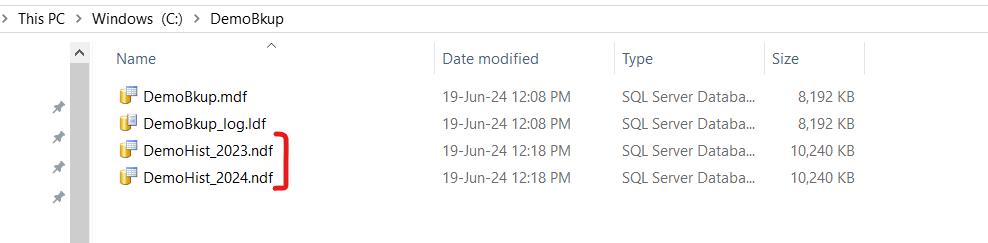
Let’s define the partition function and scheme. Then create a table on this scheme.

-- partition function
USE DemoBkup
GO
CREATE PARTITION FUNCTION [DemoBkup_PartitionRangeFunc] (DATETIME)
AS RANGE LEFT FOR VALUES
	(	
	'2023-01-01',
	'2024-01-01'
	)
GO

-- partition scheme
USE DemoBkup
GO
CREATE PARTITION SCHEME [DemoBkup_PartitionScheme]
AS PARTITION [DemoBkup_PartitionRangeFunc]
TO ([Primary],[DemoHist_2023],[DemoHist_2024])
GO

-- Create table on Partition Scheme
CREATE TABLE CustomerTrans
(
	TransDt			DateTIME		NOT NULL,
	CustomerId		INT				NOT NULL,
	TransNo			INT				NOT NULL,
	TransAmount		NUMERIC(10,2)	NOT NULL,	
	CONSTRAINT PK_CustomerTrans PRIMARY KEY CLUSTERED ([TransDt],[CustomerId],[TransNo] ASC) ON [DemoBkup_PartitionScheme]([TransDt]),
	CONSTRAINT FK_CustomerId FOREIGN KEY ([CustomerID]) REFERENCES [Customer]([CustomerId])
)ON [DemoBkup_PartitionScheme]([TransDt])
GO

This ensures that all data on or before 2023-01-01 will be inserted into file group Primary. Data after 2023-01-01 to 2024-01-01 will be inserted to DemoHist_2023. Data after 2024-01-01 will be inserted into file group DemoHist_2024. Let’s insert few rows so that each file group have some rows.

-- Primary
INSERT INTO CustomerTrans (CustomerId,TransDt,TransNo,TransAmount) VALUES (1,'2023-01-01',1,100)
GO

-- DemoHist_2023
INSERT INTO CustomerTrans (CustomerId,TransDt,TransNo,TransAmount) VALUES (2,'2023-01-02',1,200)
GO
INSERT INTO CustomerTrans (CustomerId,TransDt,TransNo,TransAmount) VALUES (3,'2023-12-31',1,300)
GO

-- DemoHist_2024
INSERT INTO CustomerTrans (CustomerId,TransDt,TransNo,TransAmount) VALUES (4,'2024-01-02',1,400)
GO
INSERT INTO CustomerTrans (CustomerId,TransDt,TransNo,TransAmount) VALUES (5,'2024-01-02',1,500)
GO
INSERT INTO CustomerTrans (CustomerId,TransDt,TransNo,TransAmount) VALUES (6,'2025-01-02',1,600)
GO

We can check how many rows are on each partition from sys.partitions.

-- all partionwise total row
SELECT *
FROM sys.partitions
WHERE OBJECT_NAME(OBJECT_ID)='CustomerTrans'
ORDER BY index_id,partition_number

The output will be 1 row in the first partition (Primary), 2 rows in the second (DemoHist_2023) and 3 in the third (DemoHist_2024)

Now, in case of recovery if we can restore the Primary & the recent year file group which is DemoHist_2024, we can bring back the database up. Because, DemoHist_2023 contains cold & immutable data for the last year and we do not need it immediately in case of recovery.

Before proceeding with backup let’s check what are the data we’ve so far:

Note that, the Customer table (demonstrated at part 1) reside on Primary File group. Now, let’s take a full backup by filegroup.

--Backup filegroups
USE MASTER
GO
BACKUP DATABASE [DemoBkup] 
	FILEGROUP = 'PRIMARY',
	FILEGROUP = 'DemoHist_2023',
	FILEGROUP = 'DemoHist_2024'	
	TO DISK = 'C:\BkupPlan\DemoBkUp\DemoBkup_File.BAK' WITH INIT
GO

Let’s insert a new customer with transaction on current date.

-- Inserting Row
USE DemoBkup
GO
INSERT INTO Customer (CustomerId,CustomerName,CustomerEmail) VALUES (7,'Mahbub','mahbub@mahbub.com')
GO
INSERT INTO CustomerTrans (CustomerId,TransDt,TransNo,TransAmount) VALUES (7,'2024-06-19',1,700)
GO

Now, taking differential filegroup backup.

-- Differential Bkup
USE MASTER
GO
BACKUP DATABASE [DemoBkup] 
	FILEGROUP = 'PRIMARY',
	FILEGROUP = 'DemoHist_2023',
	FILEGROUP = 'DemoHist_2024'	
	TO DISK = 'C:\BkupPlan\DemoBkUp\DemoBkup_Diff_1.BAK' WITH INIT
GO

Let’s insert one more customer with transaction.

-- Inserting more row
USE DemoBkup
GO
INSERT INTO Customer (CustomerId,CustomerName,CustomerEmail) VALUES (8,'Rafi','rafi@rafi.com')
GO
INSERT INTO CustomerTrans (CustomerId,TransDt,TransNo,TransAmount) VALUES (8,'2024-06-19',1,800)
GO

Note that, for both the cases the Customer data reside at Primary File group but the transaction data are at the DemoHist_2024 filegroup. Let’s take the transaction log backup at this point.

-- Transaction Log Bkup
USE MASTER
GO
BACKUP LOG [DemoBkup] 
	TO DISK = 'C:\BkupPlan\DemoBkUp\DemoBkup_Log.BAK'
	WITH NAME = 'DemoBkup-Log',
	DESCRIPTION = 'DemoBkup-Log'
GO

Inserting one more pair of rows and we’ll not take any backup after this insertion.

-- Inserting One more pair of rows
USE DemoBkup
GO
INSERT INTO Customer (CustomerId,CustomerName,CustomerEmail) VALUES (9,'Ashraf','ashraf@ashraf.com')
GO
INSERT INTO CustomerTrans (CustomerId,TransDt,TransNo,TransAmount) VALUES (9,'2024-06-19',1,900)
GO

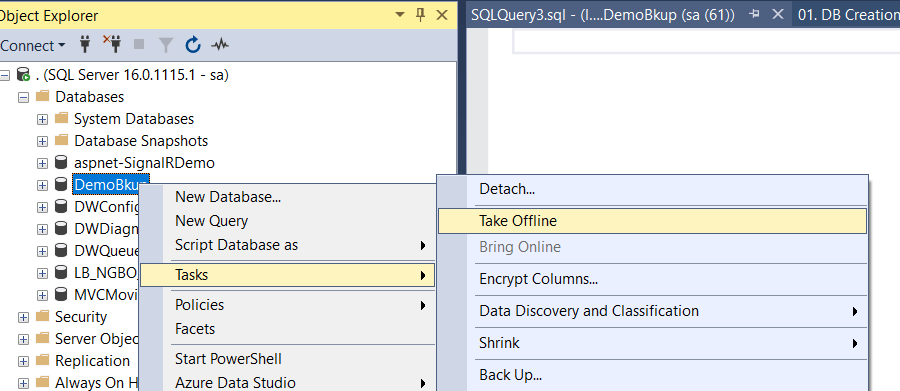
Let’s take the database offline now and drop the three data files Primary, DemoHist_2023 & DemoHist_2024. Then try to bring the database online. It won’t be up but the log will be available for tail backup. Please refer to Part 1 for detail to regenerate this scenario. However, please do not practice this at production.

Since, the log file is available let’s attempt the tail log backup before starting the restore and recovery.

USE MASTER
GO
BACKUP LOG [DemoBkup] 
    TO DISK = 'C:\BkupPlan\DemoBkUp\DemoBkup_Tail_Log.BAK'
    WITH NORECOVERY,CONTINUE_AFTER_ERROR,
    NAME = 'DemoBkup-Tail',
    DESCRIPTION = 'DemoBkup-Tail'
GO

Now, we’ll restore the Primary & DemoHist_2024 data file from full, differential, transaction log and tail log backup and open the database.

-- Piecemeal Restore
USE MASTER
GO
RESTORE DATABASE [DemoBkup] FILEGROUP = 'Primary' 
	FROM DISK = 'C:\BkupPlan\DemoBkUp\DemoBkup_File.BAK' WITH PARTIAL, NORECOVERY, REPLACE
GO

USE MASTER
GO
RESTORE DATABASE [DemoBkup] FILEGROUP = 'DemoHist_2024' 
	FROM DISK = 'C:\BkupPlan\DemoBkUp\DemoBkup_File.BAK' WITH NORECOVERY
GO

-- Restore Differential 
USE MASTER
GO
RESTORE DATABASE [DemoBkup] FILEGROUP = 'Primary' 
	FROM DISK = 'C:\BkupPlan\DemoBkUp\DemoBkup_Diff_1.BAK' WITH PARTIAL, NORECOVERY, REPLACE
GO

USE MASTER
GO
RESTORE DATABASE [DemoBkup] FILEGROUP = 'DemoHist_2024' 
	FROM DISK = 'C:\BkupPlan\DemoBkUp\DemoBkup_Diff_1.BAK' WITH NORECOVERY
GO

-- Restore Log
USE MASTER
GO
RESTORE DATABASE [DemoBkup] 	
	FROM DISK = 'C:\BkupPlan\DemoBkUp\DemoBkup_Log.BAK' WITH NORECOVERY
GO

-- Restore Tail Log
USE MASTER
GO
RESTORE DATABASE [DemoBkup] 
    FROM DISK = 'C:\BkupPlan\DemoBkUp\DemoBkup_Tail_Log.BAK' WITH RECOVERY
GO

At this point, the database is up with Primary file group and latest transactional data. To check let’s query the Customer Table first.
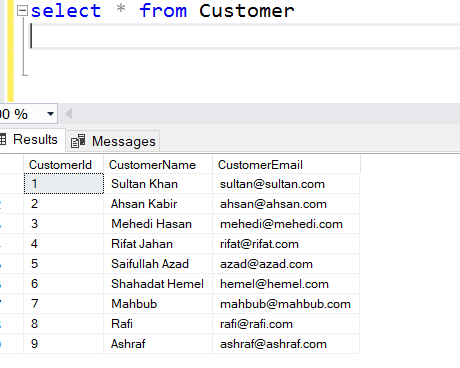
See, all customer are there even the customer with Id 9, after which we did not take any backup. But we retrieved it from the tail backup. Now, let’s try to query the CustomerTrans table.

It’ll give an error telling that DemoHist_2023 is not accessible since we’ve not restore that filegroup. We can check the file group status:

SELECT NAME, state_desc
FROM [DemoBkup].sys.database_files;
GO
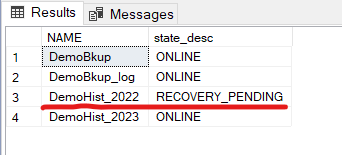
See, for this specific file group the status is RECOVERY_PENDING. But we still can query the current year data.
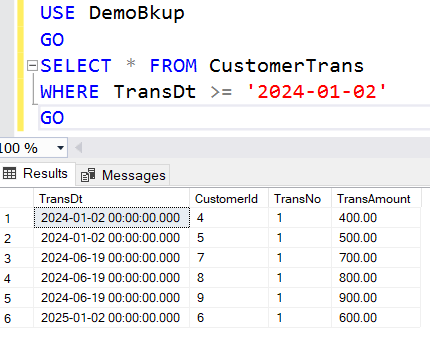
Therefore, by restoring the latest file group we can bring the business back and minimize the downtime. Later on, we can proceed with restoring the other filegroups. Let’s do it.

-- Restore Older year filegroup data
USE MASTER
GO
RESTORE DATABASE [DemoBkup] FILEGROUP = 'DemoHist_2023' 
	FROM DISK = 'C:\BkupPlan\DemoBkUp\DemoBkup_File.BAK' WITH RECOVERY
GO

USE MASTER
GO
RESTORE DATABASE [DemoBkup] FILEGROUP = 'DemoHist_2023' 
	FROM DISK = 'C:\BkupPlan\DemoBkUp\DemoBkup_Diff_1.BAK' WITH RECOVERY
GO

-- Restore Log again
USE MASTER
GO
RESTORE DATABASE [DemoBkup] 	
	FROM DISK = 'C:\BkupPlan\DemoBkUp\DemoBkup_Log.BAK' WITH RECOVERY
GO

-- Restore Tail Log again
USE MASTER
GO
RESTORE DATABASE [DemoBkup] 
    FROM DISK = 'C:\BkupPlan\DemoBkUp\DemoBkup_Tail_Log.BAK' WITH RECOVERY
GO

At first, let’s check file group status. All file groups are online now.
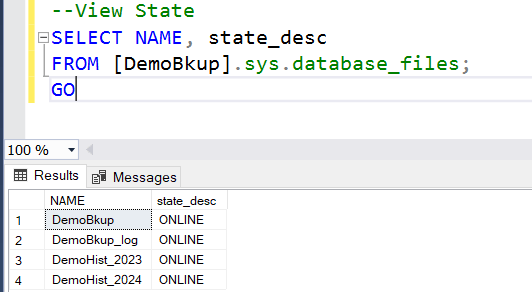
If we check Customer & CustomerTrans table we can found all data are now up to date

That’s it, we are done with the complete recovery including the tail of the log. This piecemeal restore will minimize the business recovery time and will help DBA to restore the older data files outside transaction hour.

Apart from them, achieving faster recovery time the filegroup backup also help to restore a single missing or corrupted data file. To simulate the matter let’s take another full backup.

USE MASTER
GO
BACKUP DATABASE [DemoBkup] 
	FILEGROUP = 'PRIMARY',
	FILEGROUP = 'DemoHist_2023',
	FILEGROUP = 'DemoHist_2024'	
	TO DISK = 'C:\BkupPlan\DemoBkUp\DemoBkup_File.BAK' WITH INIT
GO

Now, let’s bring the database offline and delete a file.

-- Missing a Filegroup 
USE MASTER
GO
ALTER DATABASE [DemoBkup]  SET OFFLINE 
GO

-- Remove file from OS
EXEC xp_cmdshell 'del C:\DemoBkup\DemoHist_2023.ndf'
GO

By the way, xp_cmdshell to run OS level command is by default disabled. To enable this run the following.

-- Enabling Command Shell to issue OS command
USE [master]
GO
EXEC sp_configure
'show advanced option',
'1'
GO
RECONFIGURE WITH OVERRIDE
GO

EXEC sp_configure 'xp_cmdshell', 1
GO
RECONFIGURE
GO

However, better not to enable this feature at production. Now try to bring it back to online.

-- Bring the Database Online
ALTER DATABASE [DemoBkup]  SET ONLINE
GO

You’ll receive the following error.

To recover this filegroup from the backup set firstly we need to take a tail log backup.

-- Tail Log Bkup (take before any recovery starts)
USE MASTER
GO
BACKUP LOG [DemoBkup] 
	TO DISK = 'C:\BkupPlan\DemoBkUp\DemoBkup_File_Tail_Log.BAK'
	WITH NORECOVERY,CONTINUE_AFTER_ERROR,	-- NORECOVERY ensures the DB will be at recovery mode
	NAME = 'DemoBkup-TailLog',
	DESCRIPTION = 'DemoBkup-TailLog'
GO

Now restore the missing file group followed by restoring the tail log.

-- Restoring only the missing filegroup
USE MASTER
GO

RESTORE DATABASE [DemoBkup] FILEGROUP = 'DemoHist_2023' 
	FROM DISK = 'C:\BkupPlan\DemoBkUp\DemoBkup_File.BAK' WITH NORECOVERY
GO

-- Restore Tail Log
USE MASTER
GO
RESTORE DATABASE [DemoBkup] 
	FROM DISK = 'C:\BkupPlan\DemoBkUp\DemoBkup_File_Tail_Log.BAK' WITH RECOVERY
GO

This will bring back the entire database to online.

Happy Restoring !!!

SQL Server Backup Strategy (Part 1)

Backing up database is an activity that is one of the most regular task to do with. But many times those backup are not verified by restoring. Usually database restore happens for the following:

  • Drill restoration
  • Data error
  • Disaster scenario (which is restore and then recover)

Assume a scenario, where there is a fire on your office and you have fire fighting equipment but no one knows how to use that or even worse the equipment is not working during a fire! That’s why fire drills are there. Similarly there should be data restoration drill at a regular interval to avoid panic at disaster scenario.

Defining Backup Strategy:

To define a backup strategy we need to first set the goal with correct backup type:

  • Recovery Point Objective (RPO): How much data can you afford to loose.
  • Recovery Time Objective (RTO): How long the downtime can you afford. For very large enterprise database (VLDB) this would be a big challenge.

When we are talking about restore usually it means restore with recover. If we can’t afford much data loss we must need to recover until the last point or at least to the best possible recover point.

In this article we’ll discuss the two most common backup types with restoration scenario. In the later article (https://sultanealam.com/2024/06/19/sql-server-backup-strategy-part-2/) we’ll discuss backup strategy for large database.

The two most common backup types are:

  • Full backup
  • Differential backup

A full backup is a backup that have the complete database backup and that suffices to bring the database up with a single restore. Whereas, a differential backup is the delta changes since the last full backup.

There are two more backup types followed by the above to restore the database to the most recent transactions:

  • Transaction Log Backup – A transaction log is database log file where all the transactions are being written until a full or differential backup is taken. This should be taken at a regular interval until the next full or differential backup.
  • Tail Log backup – A tail log backup captures any record that have not yet been backed up. This must be taken before any restoration operation is done. It is usually needed on a database fail or crush scenario.

However, the database recovery model must be set to Full to avail this backup. Without full recovery model you can’t recover beyond the full/ differential backup.

A typical backup plan may be:

  • Full backup on the last week day
  • Differential backup on each other week day
  • Transaction log backup during the day on each 15 minutes

If this can be done, then at worst case we can loose 15 minutes of data if we can’t take a tail log backup. The detail of tail log will be described later.

Simulation of Backup & Restore:

To simulate we will do the following:

  • Create a database with some records
  • Taking a full backup followed by two differential backup with new data at each backup
  • Take a transaction log backup after inserting more data
  • Take a tail log backup
  • Restoring each sequentially

To start with, let’s create a test database with a single table. Ensure that C:\DemoBkup\ folder exists at your machine.

-- Create New Database
USE MASTER
GO
CREATE DATABASE [DemoBkup]
ON  PRIMARY 
	( NAME = N'DemoBkup', FILENAME = N'C:\DemoBkup\DemoBkup.mdf' , SIZE = 8192KB , MAXSIZE = UNLIMITED, FILEGROWTH = 65536KB )
LOG ON 
	( NAME = N'DemoBkup_log', FILENAME = N'C:\DemoBkup\DemoBkup_log.ldf' , SIZE = 8192KB , MAXSIZE = 2048GB , FILEGROWTH = 65536KB )
WITH CATALOG_COLLATION = DATABASE_DEFAULT
GO

-- Creating Table
USE DemoBkup
GO

CREATE TABLE Customer
(
	CustomerId		INT			NOT NULL,
	CustomerName	VARCHAR(50) NOT NULL,
	CustomerEmail	VARCHAR(50) NOT NULL,
	CONSTRAINT PK_Customer PRIMARY KEY CLUSTERED ([CustomerId] ASC) ON [PRIMARY],
	CONSTRAINT UQ_Email UNIQUE ([CustomerEmail]) ON [PRIMARY],
) ON [PRIMARY]
GO

-- Inserting Data
USE DemoBkup
GO
INSERT INTO Customer (CustomerId,CustomerName,CustomerEmail) VALUES (1,'Sultan Khan','sultan@sultan.com')
GO
INSERT INTO Customer (CustomerId,CustomerName,CustomerEmail) VALUES (2,'Ahsan Kabir','ahsan@ahsan.com')
GO

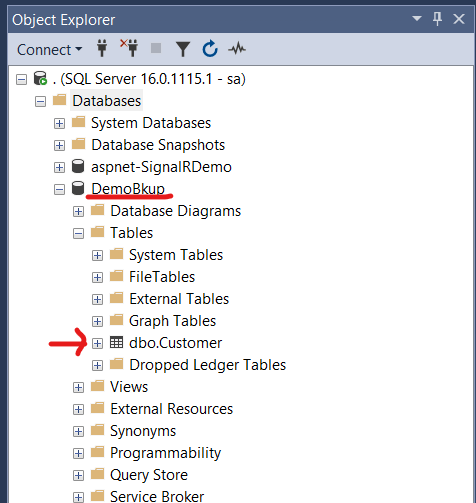
The newly created database can be viewed at SQL Server Management Studio (SSMS).

Now let’s take a full backup.

-- Full Bkup
USE MASTER
GO
BACKUP DATABASE [DemoBkup] 
	TO DISK = 'C:\BkupPlan\DemoBkUp\DemoBkup.BAK'
	WITH NAME = 'DemoBkup-Full',
	DESCRIPTION = 'DemoBkup-Full'	
GO

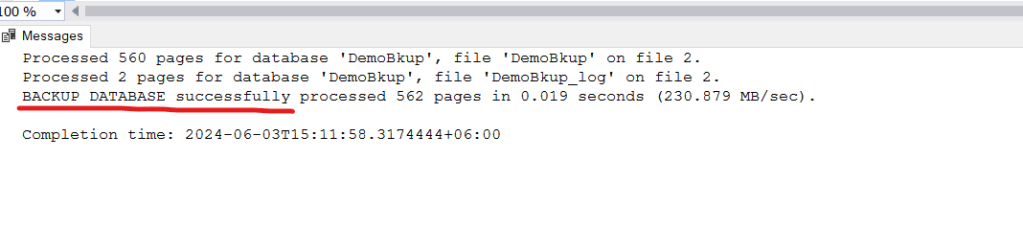
On success, the following message will displayed at output pane

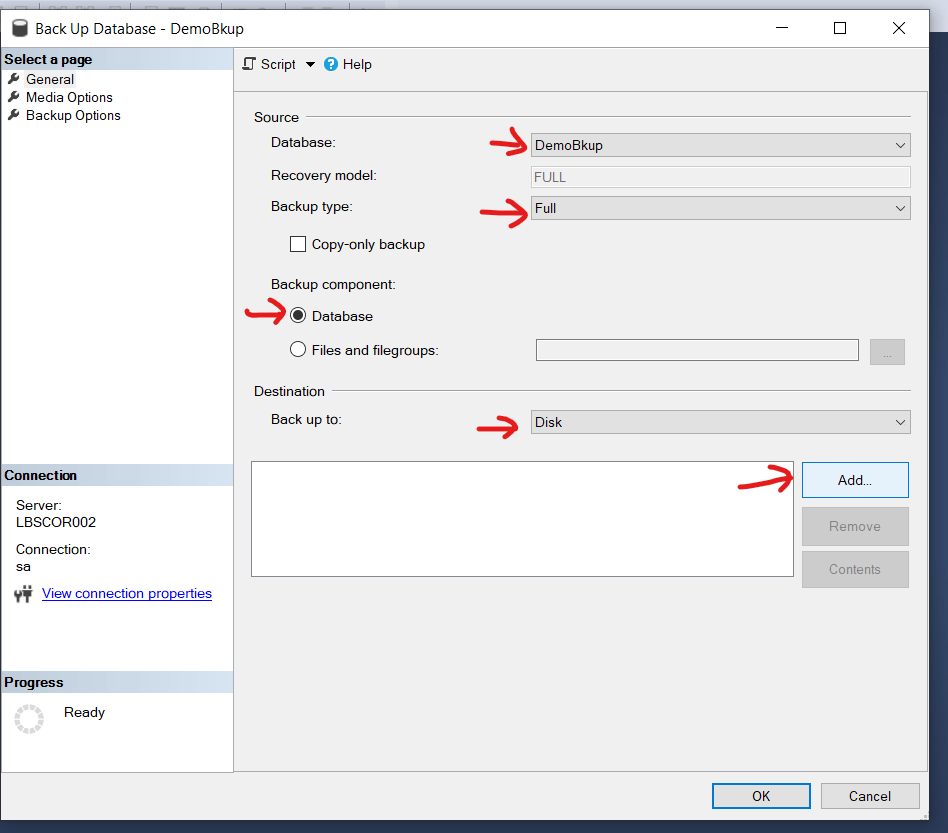
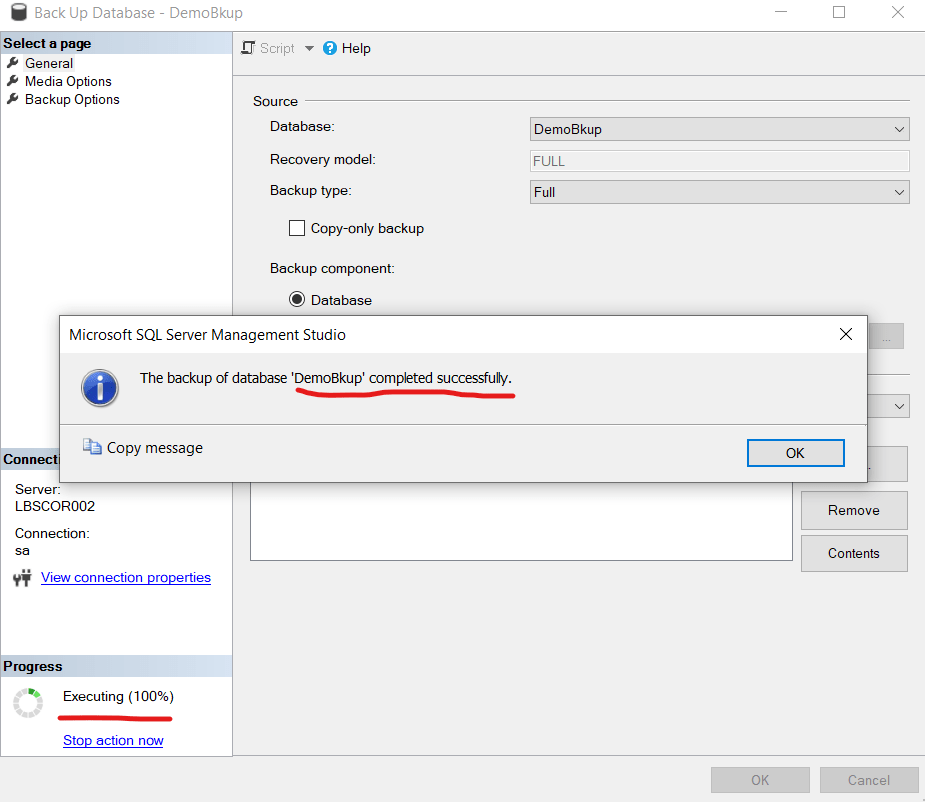
Alternatively, backup can be taken from the SSMS. Right click on the database select Task an then select “Back Up…”

Click on Add to enter the destination path

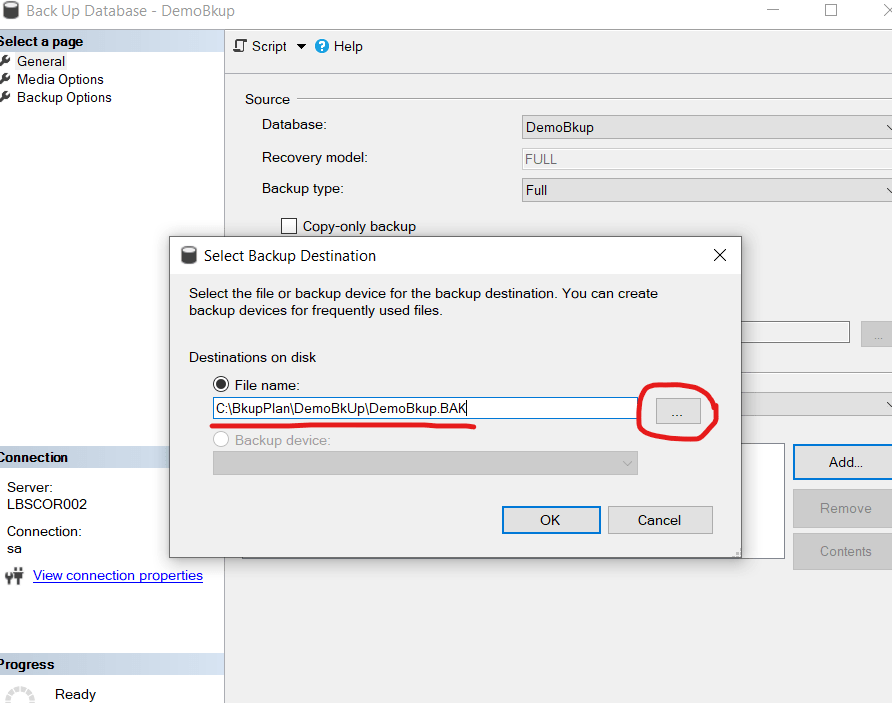
Type the path name or click on the dot to select from the file system location.

You will receive confirmation on successful backup.

So far, we’ve taken a full backup either using the query editor or using the SSMS. Now let’s insert two more rows and then take a differential backup after each insert.

-- Inserting One More Row
INSERT INTO Customer (CustomerId,CustomerName,CustomerEmail) VALUES (3,'Mehedi Hasan','mehedi@mehedi.com')
GO

-- Differential Bkup 1
USE MASTER
GO
BACKUP DATABASE [DemoBkup] 
	TO DISK = 'C:\BkupPlan\DemoBkUp\DemoBkup_Diff_1.BAK' 
	WITH DIFFERENTIAL,
	NAME = 'DemoBkup-Diff-1',
	DESCRIPTION = 'DemoBkup-Diff-1'
GO

-- Inserting Another Row
USE DemoBkup
GO
INSERT INTO Customer (CustomerId,CustomerName,CustomerEmail) VALUES (4,'Rifat Jahan','rifat@rifat.com')
GO

-- Differential Bkup 2
USE MASTER
GO
BACKUP DATABASE [DemoBkup]
TO DISK = 'C:\BkupPlan\DemoBkUp\DemoBkup_Diff_2.BAK'
WITH DIFFERENTIAL,
NAME = 'DemoBkup-Diff-2',
DESCRIPTION = 'DemoBkup-Diff-2'
GO

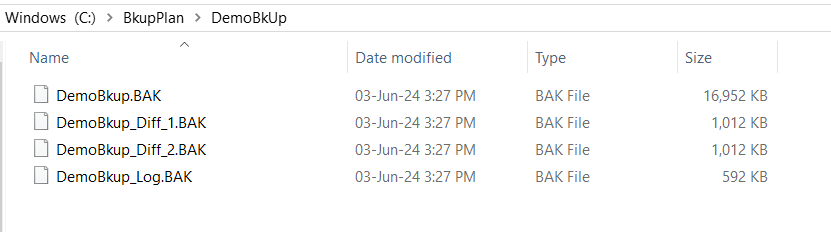
Up to this point we’ve one full backup and two differential backup. Note that both the differential backup are the changes from the full backup. So, to restore we need to restore the full backup and the last differential backup.

However, before performing restore let’s assume after the differential backup few other rows also inserted but before taking the next full/ differential backup the database failed. So, to restore and recover up to the last possible point we need the transaction log backup. Let’s insert another row and take a transaction log backup.

-- Inserting another row
INSERT INTO Customer (CustomerId,CustomerName,CustomerEmail) VALUES (5,'Saifullah Azad','azad@azad.com')
GO

-- Transaction Log Bkup (the recovery model must be FULL)
USE MASTER
GO
BACKUP LOG [DemoBkup] 
	TO DISK = 'C:\BkupPlan\DemoBkUp\DemoBkup_Log.BAK'
	WITH NAME = 'DemoBkup-Tran',
	DESCRIPTION = 'DemoBkup-Tran'
GO

Both differential & transaction log backup can be taken using SSMS as well.

Now, we’ve one full backup, two differential backup and one transaction log backup. Therefore, we can recover up to this point on any DB crash. Note that, so far we’ve inserted 5 records with customer id 1 to 5.

Now, let’s insert another row for which we won’t take any backup at all.

-- Inserting Further
INSERT INTO Customer (CustomerId,CustomerName,CustomerEmail) VALUES (6,'Shahadat Hemel','hemel@hemel.com')
GO

Let’s try to restore this data after a forced database failure. So, let’s crash the database. At first take the database offline.

Then go to the database file location at windows file explorer C:\DemoBkup and delete the DemoBkup.mdf file which is the master data file. Please do not practice this at production. Now, if we try to bring the database online it’ll fail.

Let’s try to recover the data now.

-- Restore the last full backup
USE MASTER
GO
RESTORE DATABASE [DemoBkup] 
	FROM DISK = 'C:\BkupPlan\DemoBkUp\DemoBkup.BAK' WITH NORECOVERY, REPLACE
GO

-- Restore the last differential backup
RESTORE DATABASE [DemoBkup] 
	FROM DISK = 'C:\BkupPlan\DemoBkUp\DemoBkup_Diff_2.BAK' WITH NORECOVERY
GO

-- Restore the log backup
RESTORE DATABASE [DemoBkup] 
	FROM DISK = 'C:\BkupPlan\DemoBkUp\DemoBkup_Log.BAK' WITH RECOVERY

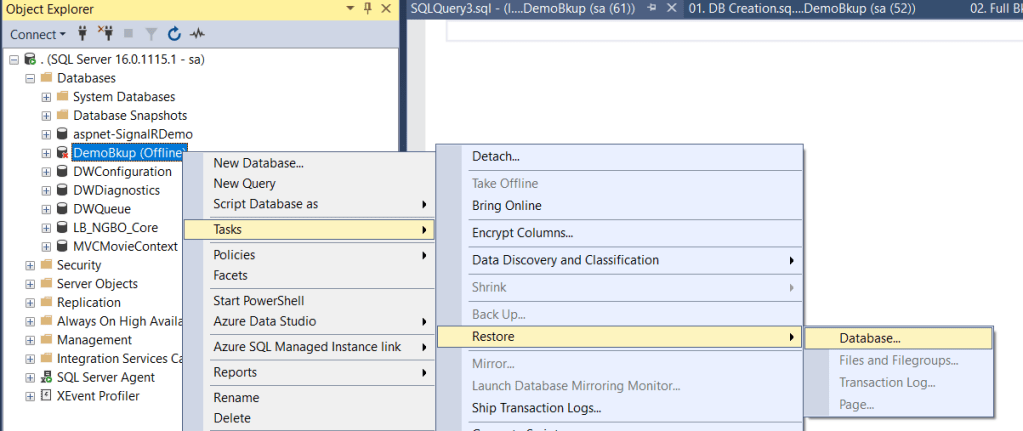
Look, for the full and differential restore we keep the database state to NORECOVERY. At the final restore we do the RECOVERY. The restoration can be done using the SSMS also. Select Restore Database option right clicking on the database name.

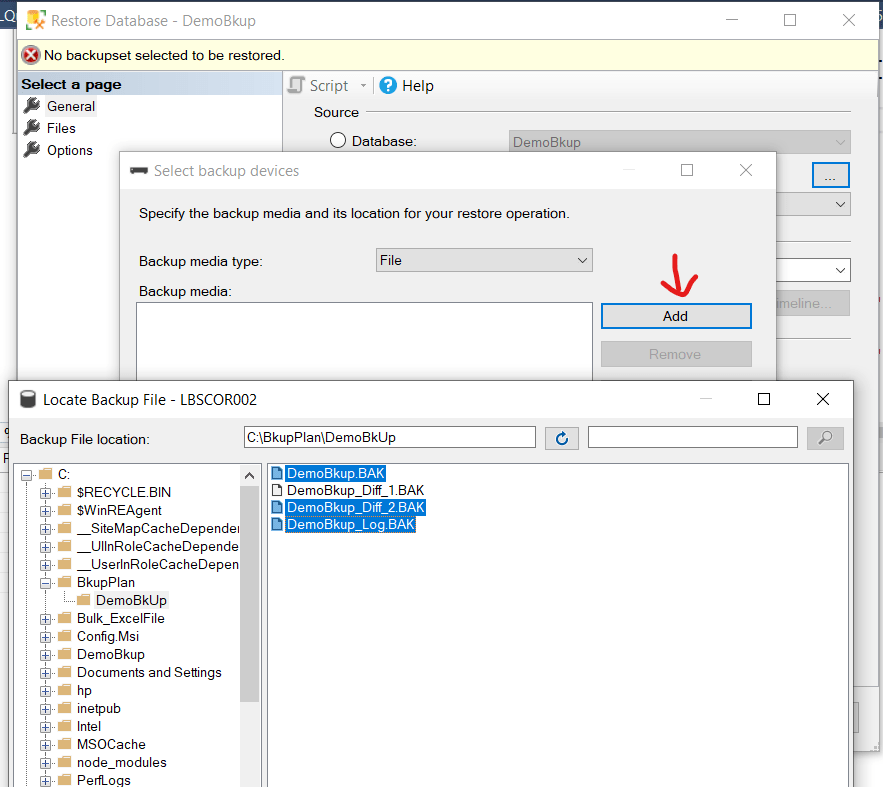
Select Device as source and click the three dot.

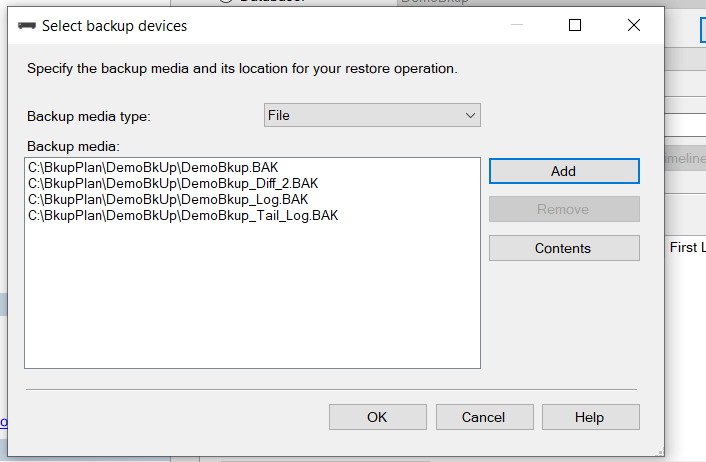
Then Click Add and select the three backup set: the full backup, last differential backup and transaction log backup.

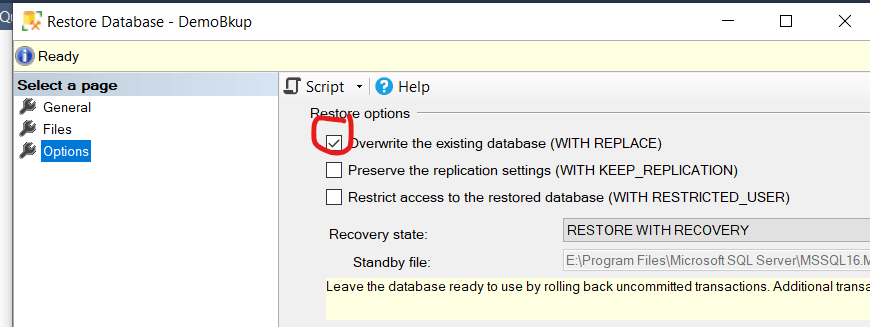
From option Select Overwrite the existing database.

Press Ok to continue. Once done (at either way you follow), we will find first 5 customers data that we’ve inserted.

But where is the employee with ID=6? Well, we’ve no transaction log backup for that. So should that data lost? If by any means we can access the database log file then we can take a tail log backup before any restore operation is done.

USE MASTER
GO
BACKUP LOG [DemoBkup] 
	TO DISK = 'C:\BkupPlan\DemoBkUp\DemoBkup_Tail_Log.BAK'
	WITH NORECOVERY,CONTINUE_AFTER_ERROR,
	NAME = 'DemoBkup-Tail',
	DESCRIPTION = 'DemoBkup-Tail'
GO

Note that at earlier stage, since we suggested to take the database offline and delete the .mdf file (not recommended to do at production), please try to bring the database online first before taking the tail backup. It’ll not bring the DB to online but it’ll make the log available for tail backup.

Now, with the successful tail backup the restore of transaction log should be with NORECOVERY because we’ll recover after tail restoration. These two backup script will be:

-- Restore Transaction Log
USE MASTER
GO
RESTORE DATABASE [DemoBkup] 	
	FROM DISK = 'C:\BkupPlan\DemoBkUp\DemoBkup_Log.BAK' WITH NORECOVERY
GO

-- Restore Tail Log
USE MASTER
GO
RESTORE DATABASE [DemoBkup] 
	FROM DISK = 'C:\BkupPlan\DemoBkUp\DemoBkup_Tail_Log.BAK' WITH RECOVERY
GO

Now, we can find the employee with ID=6 also. So we are able to recover up to the last point.

The same restoration can be done from SSMS. Just select the tail backup while selecting the backup set.

So, we are now done with a complete recovery from a DB failure. The backup and recovery always need to be well planned and tested at a regular interval to avoid DB fail on a disaster scenario. The backup plan should be a well written document with a recovery guideline.

Happy Restoring !!!

Implement RabbitMQ with .Net Core

To have a basic introduction with RabbitMQ and message queueing please refer to my article https://sultanealam.com/2024/03/11/configuring-rabbitmq-on-ubuntu/ which discussed installing RabbitMQ on Ubuntu. However, this article will use RabbitMQ from a Docker Image.

Introduction to Message Broker:

Before diving into the implementation let’s consider few use cases where message queueing can be a good choice. A publisher/producer can be any software program e.g. an online banking application that can publish message whenever a transaction happen so that the subscriber (another application) of that message can use that information to communicate somewhere else. This publisher-subscriber communication is usually asynchronous and they work independently. Therefore, for any reason if the subscriber/consumer is down, it won’t affect the producer to push message to the queue. Later on, whenever the consumer is up it can process the message asynchronously. This publisher-subscriber or producer-consumer architecture is the core of the message broking service and this makes this methodology so popular for microservice based architecture.

Another popular example is an e-commerce application where placing order is basically publishing an order detail to the message queue and there can be several consumer that is using this message to process. As for example, the shipping consumer can use the published data for prepare shipping, the email consumer can use it for sending email to client, the inventory consumer can update the inventory and so on.

Implementation:

To write our demo application, we will develop a single producer and single consumer where the producer will publish the message to a docker hosted message queue locally. The subscriber will consume the message from the queue.

To start with, let us deploy a RabbitMQ docker image:

docker run -it --rm --name rabbitmq -p 5672:5672 -p 15672:15672 rabbitmq:3.13-management

TO configure docker on Windows kindly refer to my article https://sultanealam.com/2023/02/22/configuring-docker-on-windows-10/

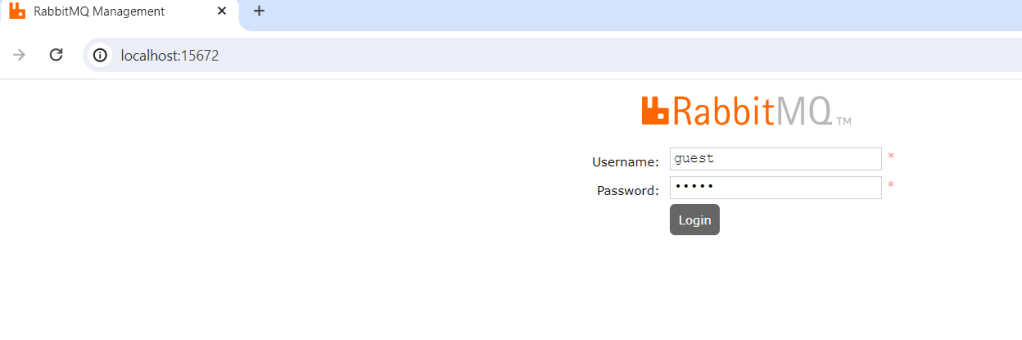
It’ll run a RabbitMQ server at localhost port 5672 with default user & password (guest & guest respectively). You can browse the RabbitMQ management at: http://localhost:15672 and login using this default credential.

If you want to run a full installation of RabbitMQ kindly refer to my article https://sultanealam.com

Developing the publisher:

  1. Create a .Net Core Console Application
  2. Implement IHostedService to run the console as background task
  3. Activate Scoped Service to use Dependency Injection
  4. Create RabbitMQ Producer Interface & it’s implementation
  5. Publish Deposit Message to the RabbitMQ for consuming

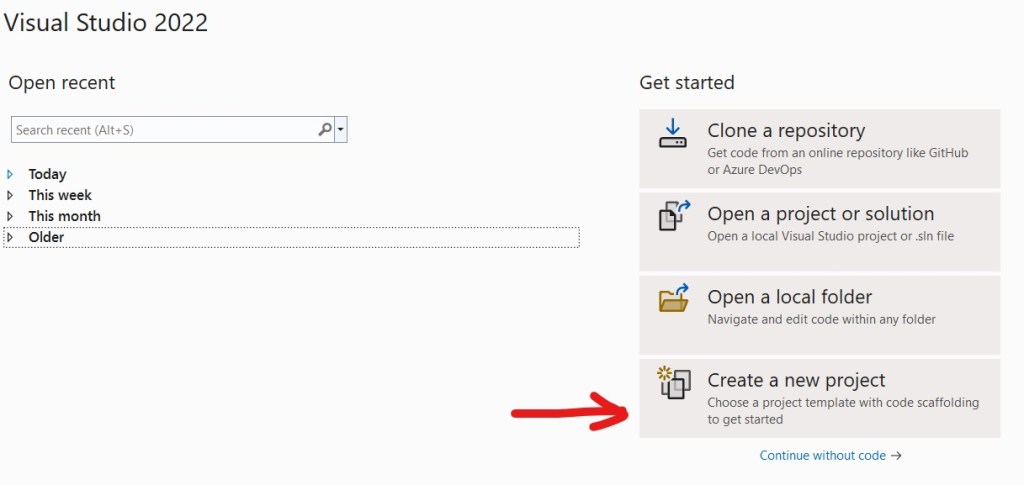
Open Visual Studio 2022 and select new project:

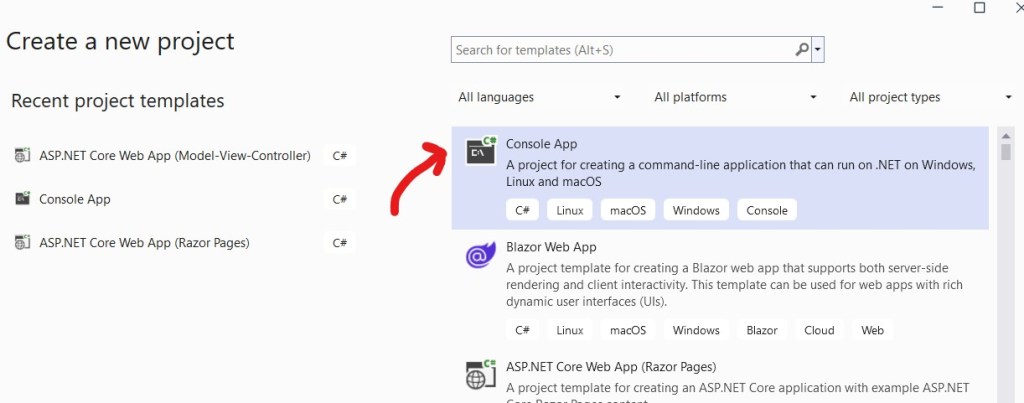
Select Console Application:

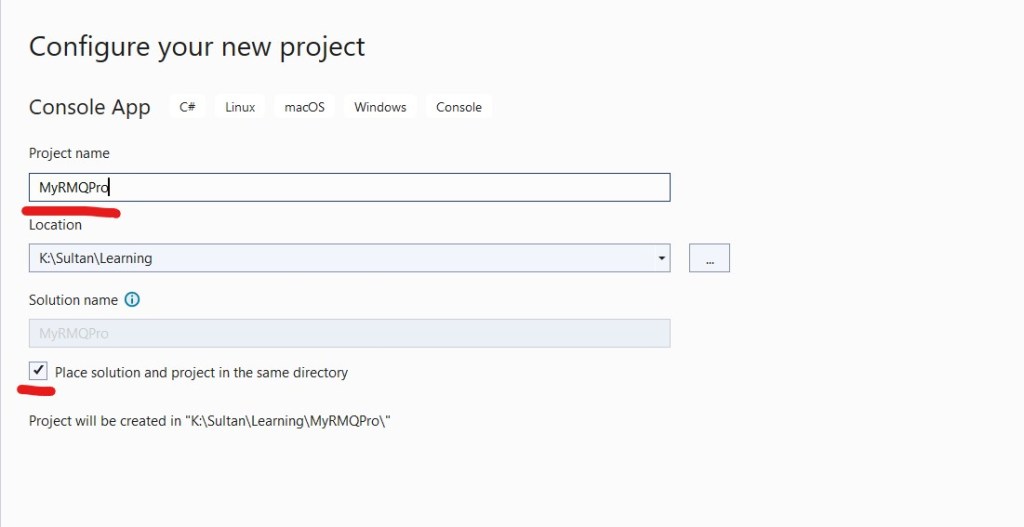
Enter Project Name for Publisher/ Producer MyRMQPro and click next:

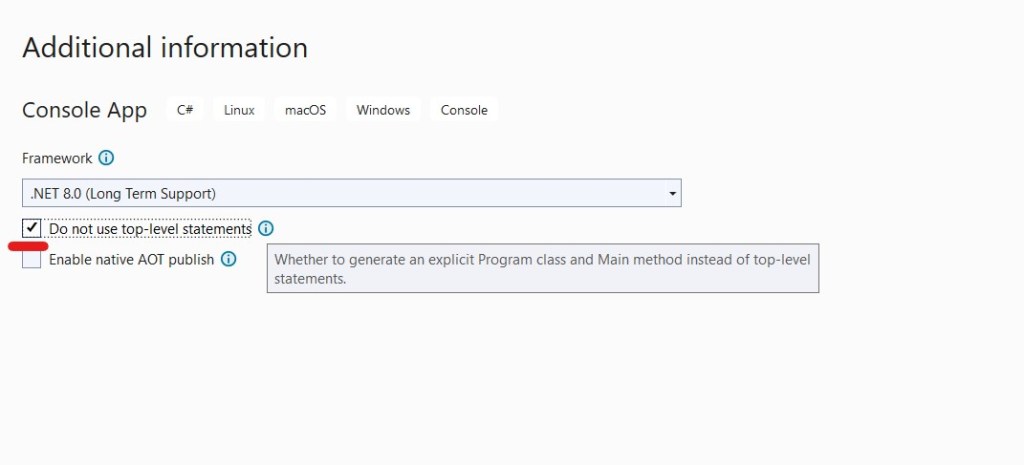
Select the latest framework:

We’ve selected “Do not use top-level statements” because personally we prefer to have explicit Program class for better readability.

Now let’s install the necessary packages:

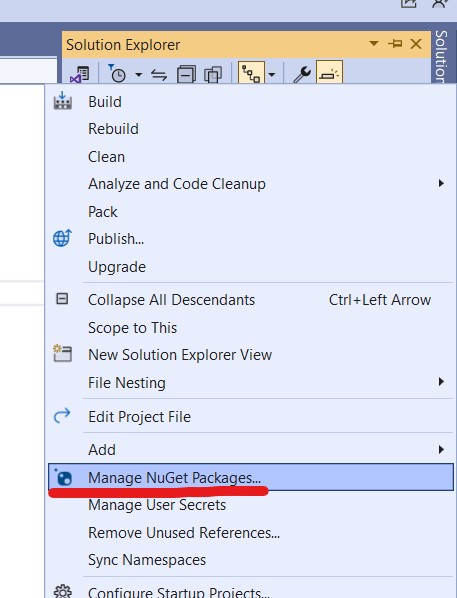
From settings check that nugget.org should set as the package source:

Go to Manage Nugget Packages again and search for RabbitMQ.Client

Install the latest stable version.

Similarly we also need to install the following nugget packages

  • Newtonsoft.Json
  • Microsoft.Extensions.Hosting
  • Microsoft.Extensions.DependencyInjection

Now let us create the RabbitMQ Producer Interface and it’s implementation.

namespace MyRMQPro
{
    public interface IRabbitMQProducer
    {
        public void SendMessage<T>(T message);        
    }
}

We’ll implement this interface along with IDisposable

internal class RabbitMQProducer : IDisposable, IRabbitMQProducer
{
        public RabbitMQProducer(IConfiguration config)
        {
            HostName = config["RMQ:HostName"];
            Port = config.GetValue<int>("RMQ:Port");
            UserName = config["RMQ:UserName"];
            Password = config["RMQ:Password"];
            Exchange = config["RMQ:Exchange"];
            Type = config["RMQ:Type"];
            Queue = config["RMQ:Queue"];
        }

}

The constructor will receive all the connection parameter usually from the setting file like the following:

{  
  "RMQ": {
    "HostName": "localhost",
    "Port": "5672",
    "UserName": "guest",
    "Password": "guest",
    "Exchange": "MyRMQEx",
    "Type": "direct",
    "Queue": "MyRMQQu"
  }
}

We will explain the detail shortly. Before that, let us come to the SendMessage method which will create the connection to exchange and queue and process message for sending.

public void SendMessage<T>(T message)
{
    

So, at the very beginning we are establishing the connection with the RabbitMQ server. It requires the HostName, Port, UserName & Password. For our docker image the host is localhost, the default port is 5672, default user & password both are guest. Once the connection is creating we are creating the channel.

    //Rabbit MQ Server    
    var factory = new ConnectionFactory
    {
        HostName = HostName,
        Port = Port,
        UserName = UserName,
        Password = Password
    };
    //Create the RabbitMQ connection
    _connection = factory.CreateConnection();
    //Creating channel with session and model    
    _channel = _connection.CreateModel();    

The next part is declaring the Exchange. To do so, we need to tell the Exchange name which is “MyRMQEx” from the setting file. Then we are telling the exchange type which is “direct” from the setting. The Direct Exchange is simple, the message goes to the Queue which binding key exactly matches the routing key of the message. In this case, we are simply keeping the routing key to empty, so any consumer subscribing to this Queue having empty routing key can consume the message published from here. Apart from Direct Exchange there are other exchanges like topic, headers and fanout. Though we are receiving the Exchange Type from settings, there is a class ExchangeType which can be used to set the type like ExchangeType.Direct. We are declaring the exchange durable and it won’t be deleted even after there are no producer.

     //Declaring Exchange
    _channel.ExchangeDeclare(Exchange, Type, durable: true, autoDelete: false);

Now, we will declare the Queue and bind it to the exchange. The Queue name is taken from the setting which is “MyRMQQu”.

    //Declaring the queue
    _channel.QueueDeclare(Queue, durable: true, exclusive: false, autoDelete: false);
    _channel.QueueBind(Queue, Exchange, string.Empty);
 

Like the exchange we are declaring the Queue as durable with autoDelete to false. We are also setting exclusive to false so the Queue will be available outside it’s declaring connection.

The final step is to serialize the message and publish.

            //Serialize the message
            var json = JsonConvert.SerializeObject(message);
            var body = Encoding.UTF8.GetBytes(json);
            //put the data on to the product queue
            _channel.BasicPublish(exchange: Exchange, routingKey: String.Empty, body: body);
            Console.WriteLine($"Message published: {json}");            

That’s all with the publishing the message. We need to implement the IDisposable to close the open connection and channel.

 protected virtual void Dispose(bool disposing)
 {
     if (!disposedValue)
     {
         if (disposing)
         {
             _channel.Close();
             _connection.Close();
         }                
         disposedValue = true;
     }
 }
 public void Dispose()
 {
     // Do not change this code. Put cleanup code in 'Dispose(bool  disposing)' method
     Dispose(true);
     GC.SuppressFinalize(this);
 }

Now, let’s implement the IHosted Service for background job which will produce random message and pushed to the exchange.

public Task StartAsync(CancellationToken cancellationToken)
{
    for (int i = 1; i <= 15; i++)
    {
        Deposit deposit = new Deposit(i, i*1000,DateTime.Now);
        _rabbitMQProducer.SendMessage(deposit);            
    }
    return Task.CompletedTask;
}
public Task StopAsync(CancellationToken cancellationToken)
{
    return Task.CompletedTask;
} 

We’ve initiated a POCO class Deposit to simulate the message:

public class Deposit
{
    public int TransactionId { get; set; }
    public decimal TransactionAmount { get; set; }
    public DateTime TransactionDate { get; set; }

    public Deposit(int transactionId, decimal transcationAmount, DateTime transactionDate)
    {
        TransactionId = transactionId;
        TransactionAmount = transcationAmount;
        TransactionDate = transactionDate;
    }
}

The main program will create the HostBuilder to activate scoped service and create the instance:

 static void Main(string[] args)
 {           
     Host.CreateDefaultBuilder()
         .ConfigureServices((context, services) =>
         {
             var config = context.Configuration;
             // Host
             services.AddHostedService<ProducerHost>();                                        
             // RabbitMQ
             services.AddSingleton<IRabbitMQProducer,RabbitMQProducer>(i => new RabbitMQProducer(config));
         })
         .Build()
         .Run();
 }

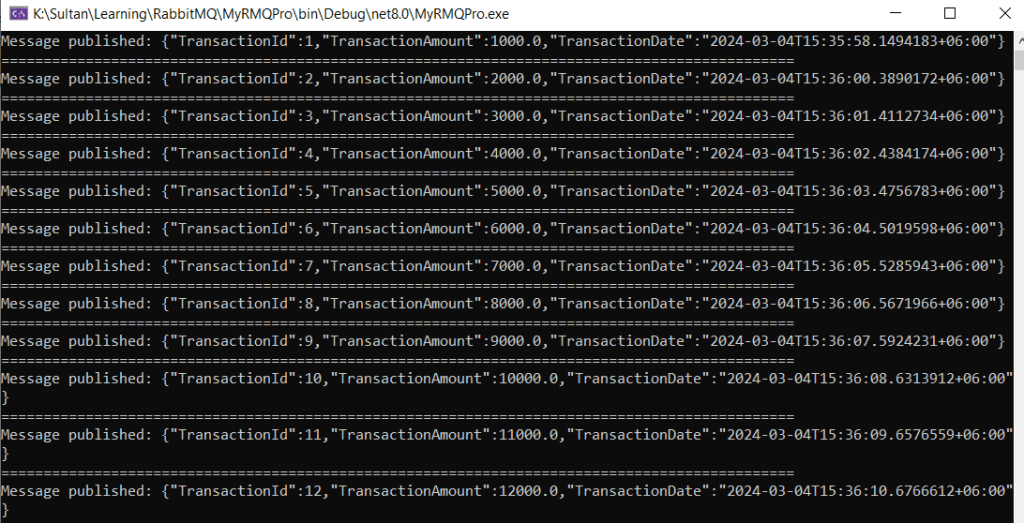
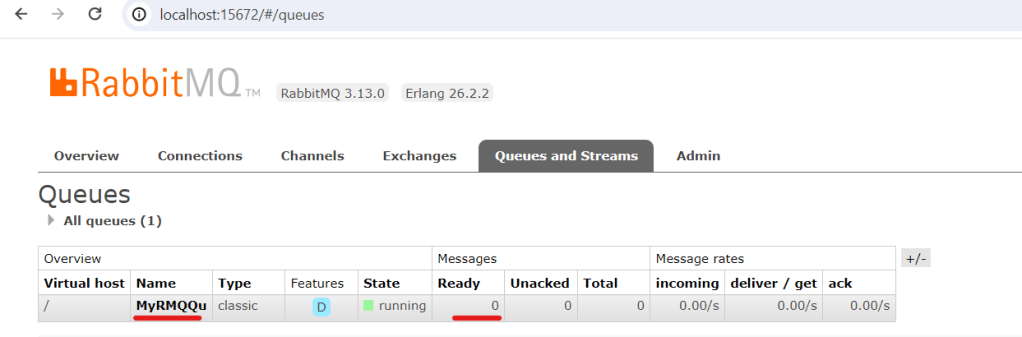
Now if we run the producer we can find the deposit message are printed to the screen and we can find them at our RabbitMQ admin dashboard.

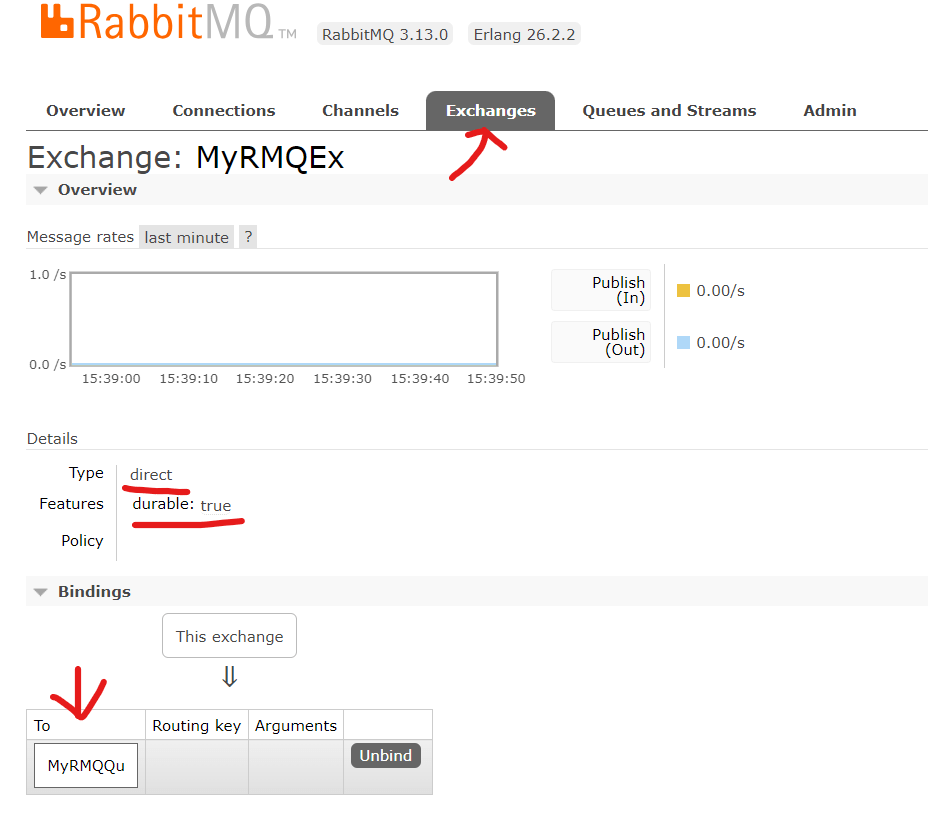
The Exchange can also be found here with the Queue binding:

Developing the consumer:

Now we’ll create a consumer to process all those published messages. The to do things are almost same lie the producer:

  1. Create a .Net Core Console Application
  2. Implement IHostedService to run the console as background task
  3. Activate Scoped Service to use Dependency Injection
  4. Create RabbitMQ Consumer Interface & it’s implementation
  5. Consume Deposit Message from the RabbitMQ that have already published

Follow the same step that we did above for publisher to create a .net console application and install the nugget packages. Then create the RabbitMQ consumer and it’s implementation:

namespace MyRMQCon.RMQ
{
    public interface IRabbitMQConsumer
    {
        public void ReceiveMessage(Func<string, bool> callback);
    }
}

Like the producer we’ll implement this interface along with IDisposable:

public class RabbitMQConsumer : IDisposable, IRabbitMQConsumer
{    
    public RabbitMQConsumer(IConfiguration config)
    {
        HostName = config["RMQ:HostName"];
        Port = config.GetValue<int>("RMQ:Port");
        UserName = config["RMQ:UserName"];
        Password = config["RMQ:Password"];
        Exchange = config["RMQ:Exchange"];
        Type = config["RMQ:Type"];
        Queue = config["RMQ:Queue"];
        FetchSize = config.GetValue<ushort>(config["RMQ:FetchSize"]);
    }

The only difference from the producer is the FetchSize which we’ll describe soon. The setting file will look like the producer except the addition of the FetchSize:

{
  "RMQ": {
    "HostName": "localhost",
    "Port": "5672",
    "UserName": "guest",
    "Password": "guest",
    "Exchange": "MyRMQEx",
    "Type": "direct",
    "Queue": "MyRMQQu",
    "FetchSize": 10
  }
}

The ReceiveMessage will receive a Func delegate returning boolean. The callback function will be implemented at the Hosted Service. We’ve the same program flow up to the Queue binding like the Producer:

        public void ReceiveMessage(Func<string, bool> callback)
        {
            //Rabbit MQ Server            
            var factory = new ConnectionFactory
            {
                HostName = HostName,
                Port = Port,
                UserName = UserName,
                Password = Password
            };
            //Create the RabbitMQ connection
            _connection = factory.CreateConnection();
            //Creating channel with session and model
            _channel = _connection.CreateModel();
            //Declaring Exchange
            _channel.ExchangeDeclare(Exchange, Type, durable: true, autoDelete: false);
            //Declaring the queue
            _channel.QueueDeclare(Queue, durable: true, exclusive: false, autoDelete: false);
            //Binding Queue to Exchange
            _channel.QueueBind(Queue, Exchange, string.Empty);

Now we need to tell the fetch size. Fetch size is the number of message a consumer fetch in case there are multiple consumer running to distribute the load.

//The first Param prefetchSize must be 0 which is the only implementation RabbitMQ.Client currently have
_channel.BasicQos(0, FetchSize, false);

Now, we’ll create the event handler which will be fired whenever there are any message at the Queue and it’ll subsequently invoke the function.

//Setting event object which listen message from chanel which is sent by producer
var consumer = new EventingBasicConsumer(_channel);
consumer.Received += (sender, eventArgs) =>
{    
    var body = eventArgs.Body.ToArray();
    var message = Encoding.UTF8.GetString(body);
    Console.WriteLine($"Message received: {message} at {DateTime.Now}");
    bool success = callback.Invoke(message);
    if (success)
    {
        //Will acknowledge on success only :: auto acknowledgement must be false on channel
        _channel.BasicAck(eventArgs.DeliveryTag, false);
        Console.WriteLine($"Message Acknowledged.");
    }
    else
    {
        //Rejecting and requeuing (requeue starts processing after reaching the fetch count for current fetch)
        _channel.BasicReject(eventArgs.DeliveryTag, true);
    }
};

We are acknowledging the message after the successful invocation of the callback function. It will ensure that the message won’t leave the queue until the processing is successful. In addition, message that failed to process during invoking are requeuing. Requeued message are automatically reprocessed by consumer until it succeed.

Finally we need to call BasicConsume outside the event handler with setting auto acknowledge to false.

//We are not auto acknowledging (autoAck), rather on successful consume we'll do that on each Invoke            
_channel.BasicConsume(queue: Queue, autoAck: false, consumer: consumer);

The next part is to implement the IDisposable which is exactly the same thing we did for the producer. So, I am not repeating the code.

Now, let’s implement the IHosted service for the consumer.

public Task StartAsync(CancellationToken cancellationToken)
{
    _rabbitMQConsumer.ReceiveMessage(ProcessMessage);
    return Task.CompletedTask;            
}
public Task StopAsync(CancellationToken cancellationToken)
{
    return Task.CompletedTask;
}

The ReceiveMessage will Invoke the ProcessMessage to process the job

 public bool ProcessMessage(string message)
 {
     Deposit deposit = JsonConvert.DeserializeObject<Deposit>(message);            
     if (deposit != null)
         return true;
     return false;
 }

The Deposit POCO class is already discussed at the Producer section above. On successful processing it’ll return true so the message will be acknowledged and leave the queue.

Like the Producer Main Program, the Consumer Main Program will also create the HostBuilder to activate scoped service and create the instance:

static void Main(string[] args)
{
    Host.CreateDefaultBuilder()
        .ConfigureServices((context, services) =>
        {
            var config = context.Configuration;
            // Host
            services.AddHostedService<ConsumerHost>();
            // RabbitMQ
            services.AddSingleton<IRabbitMQConsumer, RabbitMQConsumer>(i => new RabbitMQConsumer(config));
        })
        .Build()
        .Run();
}

Now if we run the consumer we’ll find all Queued message by our producer are now consumed and printed to the console. The RabbitMQ Admin dashboard queue is cleared.

Get the complete code from Git.

Happy Messaging !!!

Configuring RabbitMQ on Ubuntu

RabbitMQ, in today’s microservice era, becomes one of the most popular message brokers. It is open-source and have API for popular programming languages. The current stable version is 3.13 and it was originally developed to support AMQP 0-9-1 messaging protocol.

A Brief Introduction to Message Broker:

Message queueing is a way of exchanging data between different applications. It is a system that is used to define queues that accepts messages from a publisher asynchronously. Assume a microservice application where many services are communicating with each other through APIs. In such cases, the services should not communicate in a crisscross manner, rather they should use a service bus like RabbitMQ.

Installing RabbitMQ:

In this article we’ll demonstrate how to configure RabbitMQ on Ubuntu. We are assuming that you have an available Ubuntu installation. We will use RabbitMQ Apt Repositories available on Cloudsmith. RabbitMQ has provided a Quick Start Script for straight forward installation which is available at: https://www.rabbitmq.com/docs/install-debian. Let’s create a separate directory for the script:

sult@sultubu:~$ cd /home/sult/
sult@sultubu:~$ mkdir rmq
sult@sultubu:~$ cd rmq
sult@sultubu:~$ vi rmq.sh

Now put the below script to this file. However, it is strongly recommended to have the latest script from the mentioned URL at above.

#!/bin/sh

sudo apt-get install curl gnupg apt-transport-https -y

## Team RabbitMQ's main signing key
curl -1sLf "https://keys.openpgp.org/vks/v1/by-fingerprint/0A9AF2115F4687BD29803A206B73A36E6026DFCA" | sudo gpg --dearmor | sudo tee /usr/share/keyrings/com.rabbitmq.team.gpg > /dev/null
## Community mirror of Cloudsmith: modern Erlang repository
curl -1sLf https://github.com/rabbitmq/signing-keys/releases/download/3.0/cloudsmith.rabbitmq-erlang.E495BB49CC4BBE5B.key | sudo gpg --dearmor | sudo tee /usr/share/keyrings/rabbitmq.E495BB49CC4BBE5B.gpg > /dev/null
## Community mirror of Cloudsmith: RabbitMQ repository
curl -1sLf https://github.com/rabbitmq/signing-keys/releases/download/3.0/cloudsmith.rabbitmq-server.9F4587F226208342.key | sudo gpg --dearmor | sudo tee /usr/share/keyrings/rabbitmq.9F4587F226208342.gpg > /dev/null

## Add apt repositories maintained by Team RabbitMQ
sudo tee /etc/apt/sources.list.d/rabbitmq.list <<EOF
## Provides modern Erlang/OTP releases
##
deb [signed-by=/usr/share/keyrings/rabbitmq.E495BB49CC4BBE5B.gpg] https://ppa1.novemberain.com/rabbitmq/rabbitmq-erlang/deb/ubuntu jammy main
deb-src [signed-by=/usr/share/keyrings/rabbitmq.E495BB49CC4BBE5B.gpg] https://ppa1.novemberain.com/rabbitmq/rabbitmq-erlang/deb/ubuntu jammy main

# another mirror for redundancy
deb [signed-by=/usr/share/keyrings/rabbitmq.E495BB49CC4BBE5B.gpg] https://ppa2.novemberain.com/rabbitmq/rabbitmq-erlang/deb/ubuntu jammy main
deb-src [signed-by=/usr/share/keyrings/rabbitmq.E495BB49CC4BBE5B.gpg] https://ppa2.novemberain.com/rabbitmq/rabbitmq-erlang/deb/ubuntu jammy main

## Provides RabbitMQ
##
deb [signed-by=/usr/share/keyrings/rabbitmq.9F4587F226208342.gpg] https://ppa1.novemberain.com/rabbitmq/rabbitmq-server/deb/ubuntu jammy main
deb-src [signed-by=/usr/share/keyrings/rabbitmq.9F4587F226208342.gpg] https://ppa1.novemberain.com/rabbitmq/rabbitmq-server/deb/ubuntu jammy main

# another mirror for redundancy
deb [signed-by=/usr/share/keyrings/rabbitmq.9F4587F226208342.gpg] https://ppa2.novemberain.com/rabbitmq/rabbitmq-server/deb/ubuntu jammy main
deb-src [signed-by=/usr/share/keyrings/rabbitmq.9F4587F226208342.gpg] https://ppa2.novemberain.com/rabbitmq/rabbitmq-server/deb/ubuntu jammy main
EOF

## Update package indices
sudo apt-get update -y

## Install Erlang packages
sudo apt-get install -y erlang-base \
                        erlang-asn1 erlang-crypto erlang-eldap erlang-ftp erlang-inets \
                        erlang-mnesia erlang-os-mon erlang-parsetools erlang-public-key \
                        erlang-runtime-tools erlang-snmp erlang-ssl \
                        erlang-syntax-tools erlang-tftp erlang-tools erlang-xmerl

## Install rabbitmq-server and its dependencies
sudo apt-get install rabbitmq-server -y --fix-missing

Make the file executable and run:

sult@sultubu:~$ chmod +x rmq.sh
sult@sultubu:~$ ./rmq.sh

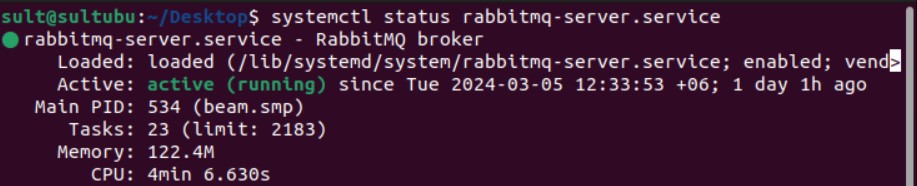
Once done you can check that RabbitMQ service is installed at your server. It’ll run as a non-privelege user rabbitmq. To check the service status:

sult@sultubu:~$ systemctl status rabbitmq-server.service

You can start/ stop the service:

sult@sultubu:~$ systemctl stop rabbitmq-server.service

sult@sultubu:~$ systemctl start rabbitmq-server.service

On the next step, we will enable management plugin for web management console.

sult@sultubu:~$ sudo rabbitmq-plugins enable rabbitmq_management

You can check the list of enabled plugin:

sult@sultubu:~$ sudo rabbitmq-plugins list

It’ll enable the web management with default user & password guest & guest respectively at port 15672.

This can be browsed from the localhost only http://localhost:15672 because guest user by default can’t access from outside. Now we’ll create an admin user with password admin123.

sult@sultubu:~$ sudo rabbitmqctl add_user admin admin123

Next this user needs to give the Administrator role:

sult@sultubu:~$ sudo rabbitmqctl set_user_tags admin administrator

The final thing on successful user creation is to allow the user for all virtual host:

sult@sultubu:~$ sudo rabbitmqctl set_permissions -p "/" "admin" ".*" ".*" ".*"

Now you can login using this user from the network. However, the mentioned port must be allowed at Ubuntu firewall. For the ease of configuration we are just disabling the firewall for the time being:

sult@sultubu:~$ sudo ufw disable

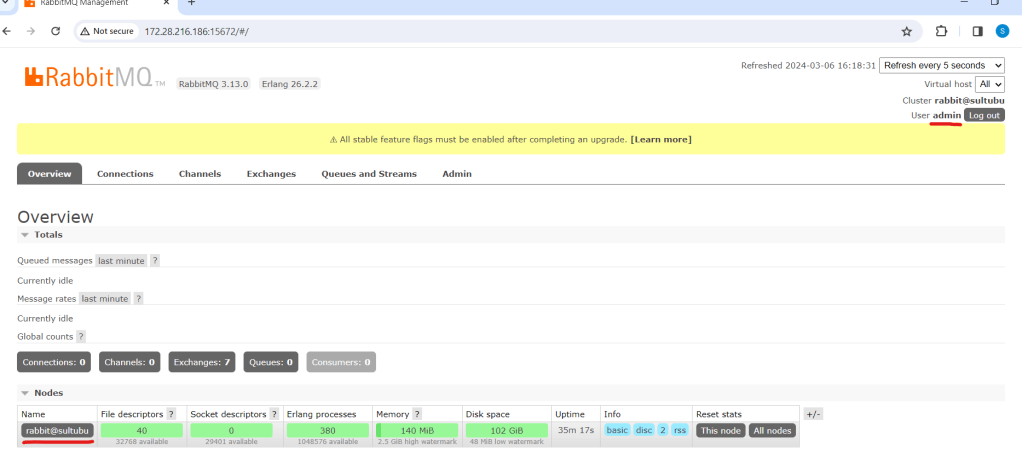
Now let us login from the network http://<rabitmq-server-ip&gt;:15672

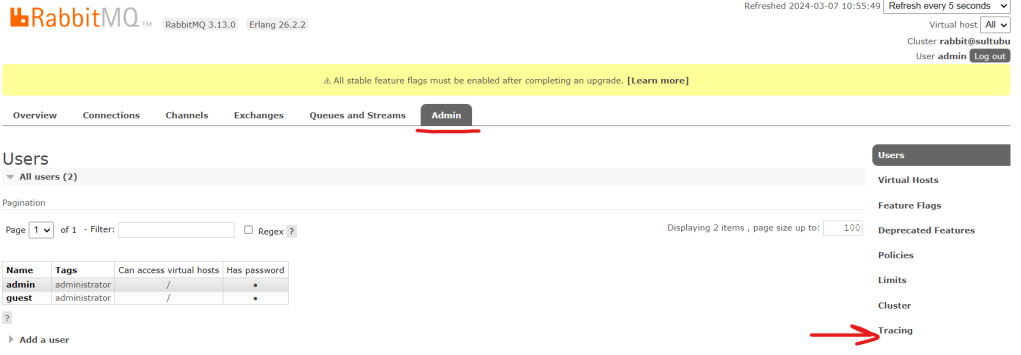
We can check the user list that we’ve just created. Click on “Admin” tab:

Exchange & Queue:

As discussed at the beginning, RabbitMQ works as publisher-subscriber or producer-consumer model. The terms are used interchangeably.

  1. A publisher/producer publishes message to exchange with binding key and queue name.
  2. Exchange route the message to designated queue.
  3. A subscriber/consumer subscribe to that Queue will receive the message and send acknowledgement.

The bounding between exchange and queue are done by routing key. There are different type of exchanges like direct, headers, topic and fanout. For detail discussion of the exchanges kindly refer to the RabbitMQ tutorial https://www.rabbitmq.com/tutorials.

You can browse the list of exchanges from the web console:

Except “MyRMQEx”, the other exchanges are created by default during installation. Our exchange “MyRMQEx” is a direct exchange and it is bound to a queue “MyRMQQu”.

Simply, a Queue is bound to an Exchange using the Routing Key. We’ve kept the Routing Key empty so the exchange is directly bound to the Queue. You can see the Queue list from Admin panel:

For more detail on Exchange & Queue creation, binding and messaging please refer to my article https://sultanealam.com/2024/03/11/implement-rabbitmq-with-net-core.

Finally, we want to enable the message tracing and logging so that we can check the message comes and leave to this Queue. RabbitMQ has a “Firehose” tracer that enables the message tracing https://www.rabbitmq.com/docs/firehose.

However, we’ll use the GUI plugin https://www.rabbitmq.com/blog/2011/09/09/rabbitmq-tracing-a-ui-for-the-firehose for this. We need to enable the plugin:

sult@sultubu:~$ sudo rabbitmq-plugins enable rabbitmq_tracing

Once tracing is enabled you can find it under admin tab.

Now, let’s create a trace for the Queue “MyRMQQu”:

Let’s use the queue name as trace name, you can use any other name as well. I’ve kept the same credential that I’ve used for web console for the tracer connection. The pattern is used “#” to trace all incoming and outgoing message. Click Add Trace to complete and you will find the tracer is added.

The Trace of file size will grow once message are published and subscribed. We can click on the Trace log file name to view the log entry:

Moreover, the trace log can be found from shell as well. You need to be the root used to view the log:

sult@sultubu:~$ su -
Password:
root@sultubu:~# cd /var/tmp/rabbitmq-tracing/
root@sultubu:/var/tmp/rabbitmq-tracing# ll
total 24
drwxr-x--- 2 rabbitmq rabbitmq 4096 মার্চ 6 18:02 ./
drwxrwxrwt 12 root root 4096 মার্চ 7 04:36 ../
-rw-r----- 1 rabbitmq rabbitmq 14000 মার্চ 6 18:32 MyRMQQu.log

The MyRMQQu.log is our trace file. We can tail the log from here:

root@sultubu:/var/tmp/rabbitmq-tracing# tail -f MyRMQQu.log
Connection:   172.28.208.1:14010 -> 172.28.216.186:5672
Virtual host: /
User:         admin
Channel:      1
Exchange:     MyRMQEx
Routing keys: [<<>>]
Queue:        MyRMQQu
Properties:   []
Payload:
{"TransactionId":15,"TransactionAmount":15000.0,"TransactionDate":"2024-03-06T18:03:03.1589113+06:00"}

The default RabbitMQ log is available at /var/log/rabbitmq/.

That’s all about the installation of RabbitMQ on Ubuntu. Please see my other article to know how we can implement a Producer and consumer using .Net Core: https://sultanealam.com/2024/03/11/implement-rabbitmq-with-net-core/

Happy Messaging !!!

Building Docker Image for ASP.Net Application

This article will describe building and deploying an ASP.Net sample web application for Docker. We’ll be using Docker Desktop for Windows and Visual Studio 2022 Developer Edition.

To learn how to install Docker Desktop on Windows 10 please refer to my article https://sultanealam.com/2023/02/22/configuring-docker-on-windows-10/

ASP.Net web application can only be deployed on Windows Container. However, .Net Core application can be deployed either at Linux or at Windows container. To learn more about deploying .Net Core application refer to my article https://sultanealam.com/2023/02/23/building-your-first-net-core-docker-image/

Let’s follow the steps to create the project:

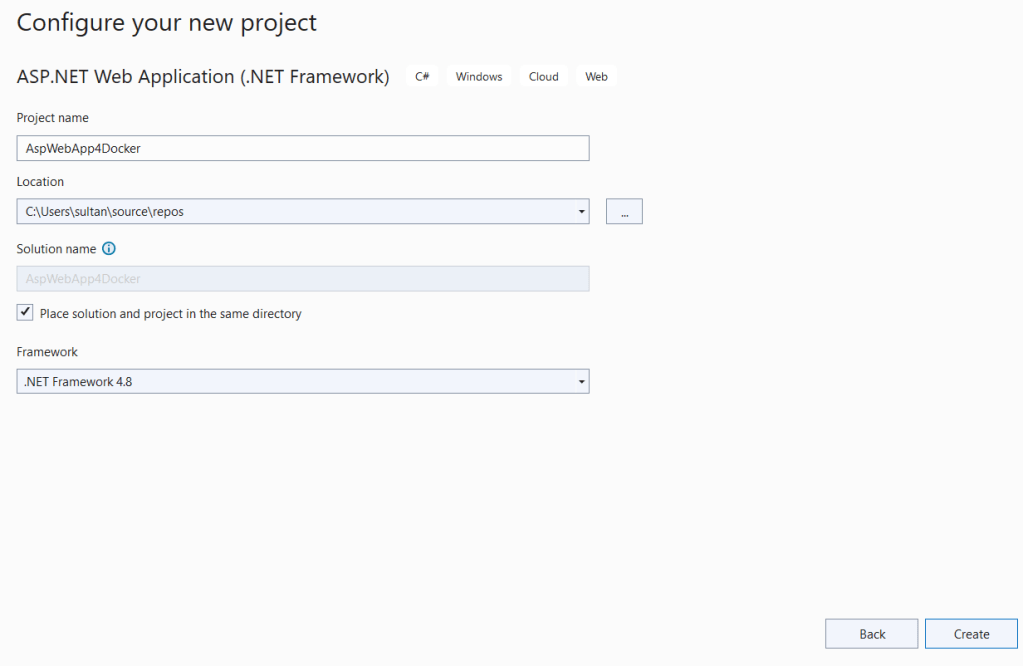
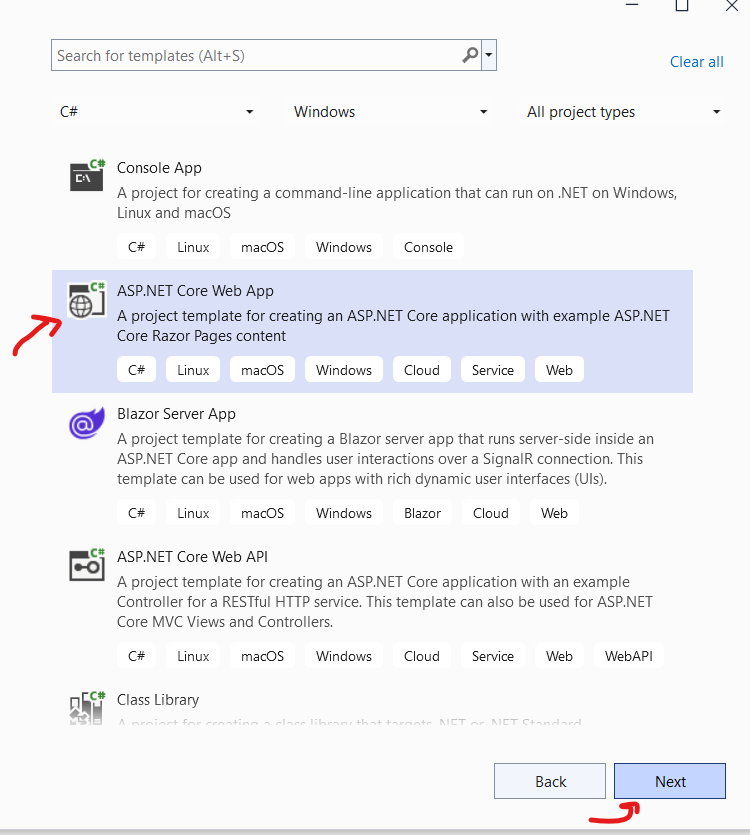
  • Open Visual Studio 2022 and create a new project
  • Let’s name it AspWebApp4Docker
  • Check Docker Support on the next screen. As this is a ASP.Net application so only Windows Container is supported.
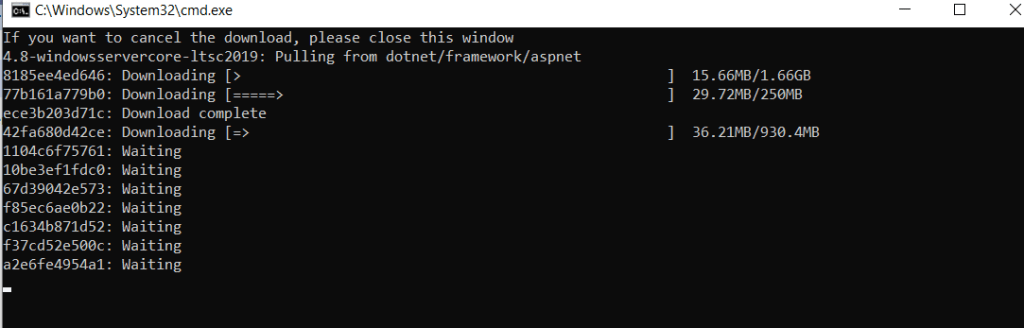
  • Click Create and there will be pulling of Docker Image for Windows Server Core will be started on a separate command prompt.
  • The output window of Visual Studio will be shown something like this
  • Once done this will try to run the project from Docker Image. But it didn’t work for me !
  • Let’s remove the image from Docker.
  • Find the image at Power Shell
    • docker ps
  • It’ll be something like aspwebapp4docker:dev. Stop it and then remove
    • docker stop aspwebapp4docker:dev
    • docker rm aspwebapp4docker:dev
  • Now go to the Docker File at the project directory. It’ll be look like:
  • Let’s comment out this code using #infront of each line. Yes, that’s how we comment a docker file.
  • Now We’ll publish the application before put it into docker.
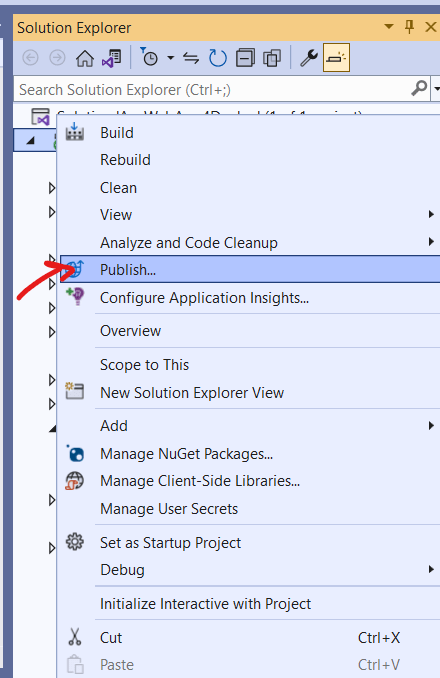
  • From Visual Studio Solution Explorer Select Publish.
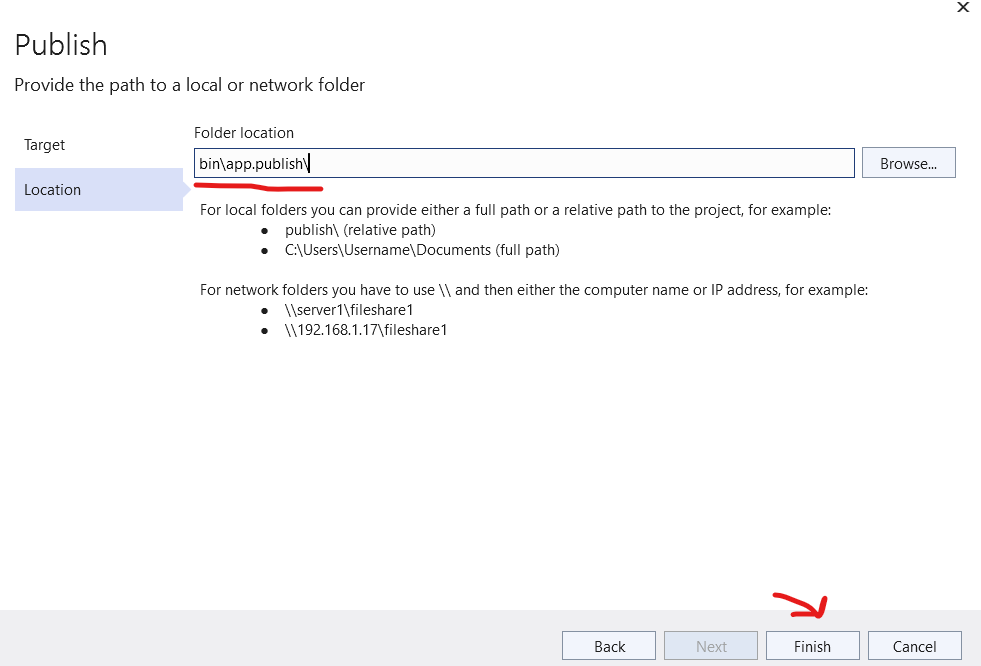
  • We’ll publish it locally. Select folder to publish on next screen and put the folder name on subsequent screen.
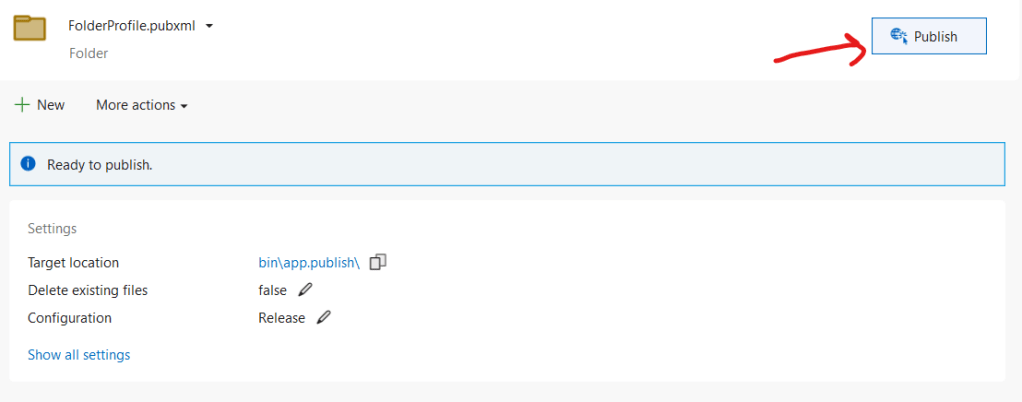
  • Finally do Publish
  • This publish folder will be available at your project root directory bin folder.
  • Now we’ll tell Docker to use this location to build the image
  • Open the Docker File and put the following:

FROM mcr.microsoft.com/dotnet/framework/aspnet:4.8-windowsservercore-ltsc2016

COPY ./bin/app.publish/ /inetpub/wwwroot

  • Here we are instructing to use the windows server core image and copying the published application to /inetpub/wwwroot
  • Now we’ll build the project form Windows Power Shell. Please note that as we are already done with pulling the windows server from Microsoft Container Registry while creating the project so this time it will use the cache to proceed.
  • At Power Shell change location to project root directory. Now build the project
    • docker build -t aspwebapp4docker .
  • The image is named to aspweb4docker. We can also do a tagging using the name:tag format. As we are not assignign any tag so the default tag is set to latest.
  • Now run the image
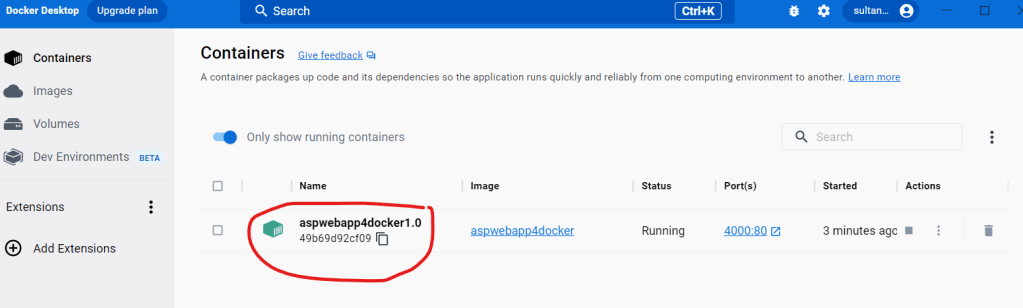
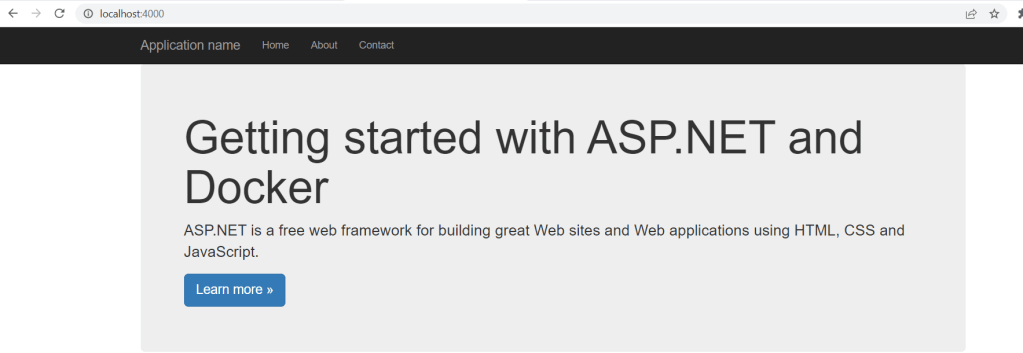
    • docker run -d -p 4000:80 --name aspwebapp4docker1.0 aspwebapp4docker
  • Once done it’ll show the id of the image.
  • This can also be viewed from Power Shell
    • docker ps
  • We can also view from Docker desktop

References

Building Your First .Net Core Docker Image

This article will describe building and deploying a .Net Core sample application for Docker. We’ll be using Docker Desktop for Windows and Visual Studio 2022 Developer Edition.

To learn how to install Docker Desktop on Windows 10 please refer to my article https://sultanealam.com/2023/02/22/configuring-docker-on-windows-10/

Deploying on Linux Container

Let’s follow the steps to create the project:

  • Open Visual Studio 2022 and create a new project
  • Let’s name it CoreWebApp4Docker
  • Enable Docker on the next screen and select Linux as container type
  • Now make some changes at the index.cshtml file to display some customize text after we’ve deployed. Change at Line No 9 to Learn about building Web apps with ASP.NET Core and deploying at Docker.
  • Let’s have a look at the Docker file which is created automatically by Visual Studio.Net
  • The Docker file contains build instruction to deploy the image at Docker. This is known as Docker Multistage build feature. The multistage build allows container images to be created in stages that produce intermediate images. 
  • At the top the Docker Multistage build file following section is telling Docker to create ASP.Net image from Microsoft Container Registry. It’s creating an intermediate image named base that exposes Port 80 and set working directory to /app
FROM mcr.microsoft.com/dotnet/aspnet:6.0 AS base
WORKDIR /app
EXPOSE 80
  • The next stage is Build which starts with a different original image from registry which is sdk. The sdk image has the build tools and it’s quite bigger than the aspnet image. The aspnet image only contains the runtime.

FROM mcr.microsoft.com/dotnet/sdk:6.0 AS build
WORKDIR /src
COPY ["CoreWebApp4Docker.csproj", "."]
RUN dotnet restore "./CoreWebApp4Docker.csproj"
COPY . .
WORKDIR "/src/."
RUN dotnet build "CoreWebApp4Docker.csproj" -c Release -o /app/build

  • The next step is publishing the image from build

FROM build AS publish
RUN dotnet publish "CoreWebApp4Docker.csproj" -c Release -o /app/publish /p:UseAppHost=false

  • The final stage is using the base which have only the runtime and copy the recently published folder to the final image. As the final image is only containing the runtime so it’ll be quite smaller that the build image.

FROM base AS final
WORKDIR /app
COPY --from=publish /app/publish .
ENTRYPOINT ["dotnet", "CoreWebApp4Docker.dll"]

  • So we are done with the Dockerfile. Visual Studio 2022 have built in feature to build the application as Docker image.
  • However we won’t do this. We’ll use WSL command line to build the application.
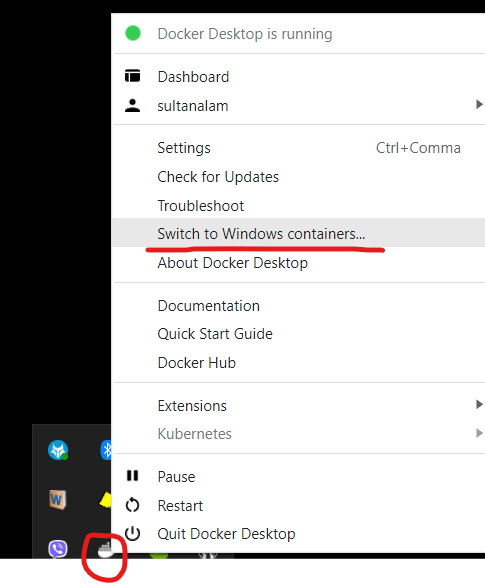
  • At first run your Docker Desktop and ensure that you are running Linux Container. If you find the option to “Switch to Windows Containers…”, this means you are on Linux Container.
  • Open Ubuntu Command Shell and see whether Docker is running:
    • docker
  • If you find docker help is showing that means Docker is running as Linux container
  • Build the image using the Docker file created by Visual Studio
  • Browse to the directory where Docker File exists
  • For me it is
    • cd /mnt/c/Users/sultan/source/repos/CoreWebApp4Docker
  • Note that at WSL your Windows drive will be mounted under /mnt/
  • Now build using docker build
    • docker build -t corewebapp4docker .
  • We named the build as corewebapp4docker and the . at the end indicates the current directory where Docker Files exists
  • The name can be given as name:tag format otherwise it’ll be tagged as corewebapp4docker:latest
  • The output will be like this:
  • Now we’ll run the image
    • docker run -d -p 5000:80 --name corewebapp4docker1.0 corewebapp4docker
  • The -d is telling to run the image at background and show the container Id only. -p is saying to map host port 5000 to Docker port 80. --name is naming the image and the last one is the image name that we’ve used during build.
  • Once done you can list the running image using
    • docker ps
  • We can also view the image at Docker Desktop
  • That’s all we are done with deploying our .Net core application to Docker.

Deploying on Windows Container

  • Now we’ll deploy the same project to Windows Container.
  • At first we need to stop and remove the existing image
    • docker stop corewebapp4docker1.0
    • docker rm corewebapp4docker1.0
  • We can run docker ps to be sure that we are done
  • Now let’s change the container to Windows Container from Docker Desktop
  • Now we will use Windows Power Shell to deploy and run
  • Power Shell must be opened with Administrator privilage
  • We’ll follow the same steps we’ve used for Linux containers
    • docker build -t corewebapp4docker .
    • docker run -d -p 5000:80 --name corewebapp4docker1.0 corewebapp4docker
  • And we are done. We can list the image using docker ps. Or we can see the Docker Desktop Window.
  • The application will be browsable from http://localhost:5000
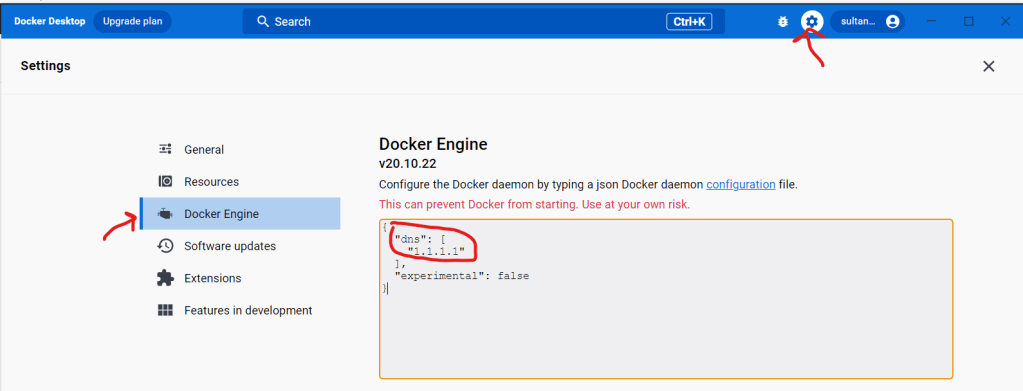
  • There might be issues with accessing api.nuget.org to download nugget package. In that case at Docker –> Setting –> Docker Engine add the following json tag with the existing:
    • "dns" : ["1.1.1.1"]
  • The setting will be look like
  • Now this image is locally available. To share the image we have to publish the image to Docker Hub.

Publishing to Docker Hub

  • To register the image into the Docker Hub we need to have an account over there.
  • Go to https://hub.docker.com/ and create an account
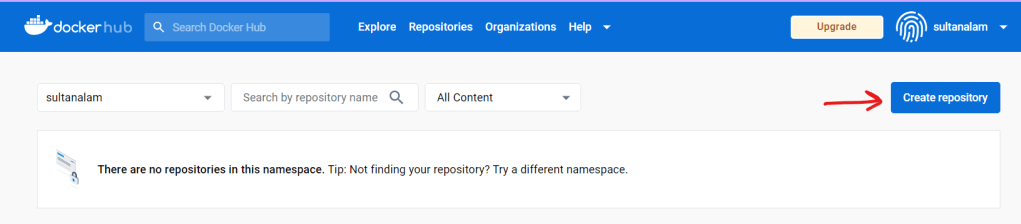
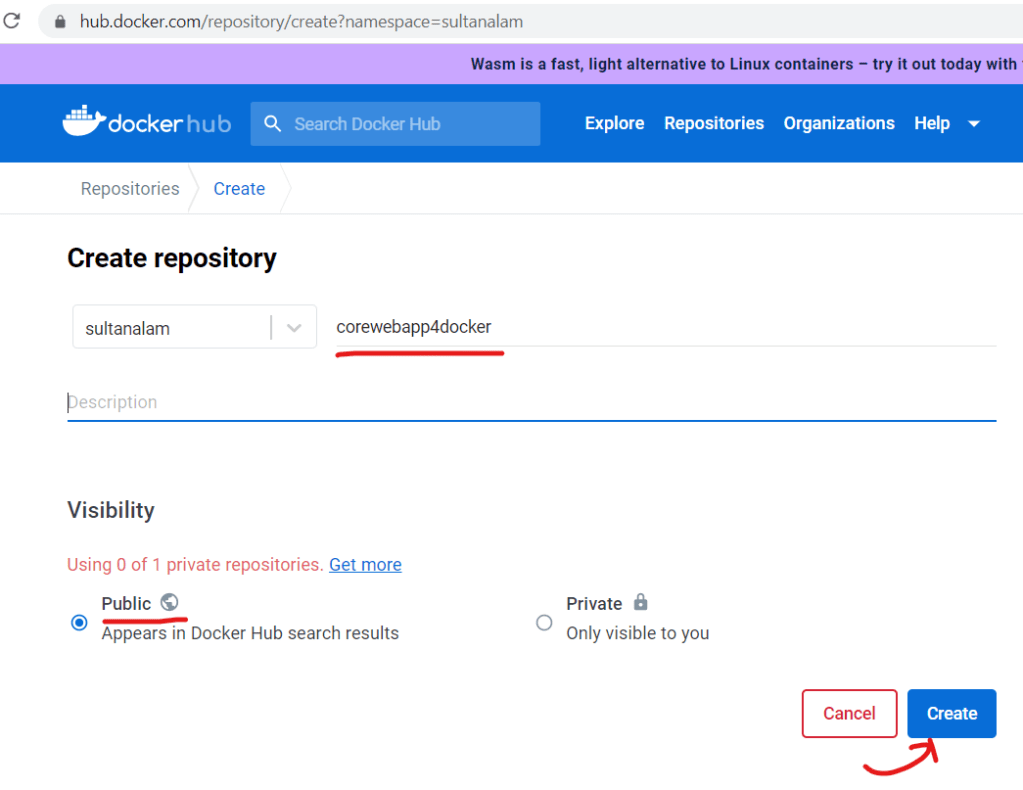
  • Now create a repository over there where we can publish the app.
  • Now come on to the Power Shell again and login to Docker Hub with the user name just we’ve created
    • docker login -u sultanalam
  • We need to tag the currently build image with the username/repository name we’ve just created
    • docker tag corewebapp4docker sultanalam/corewebapp4docker1.0
  • Now pushing the image to the hub using the new tag
    • docker push sultanalam/corewebapp4docker1.0
  • The image will be available under the repository we’ve created

References:

Configuring Docker on Windows 10

This article will describe the ways to enable a Windows 10 Machine to support docker.

You can run docker on Windows 10 using either of the following ways:

  • Linux Container
  • Windows Container

Enabling Linux Container:

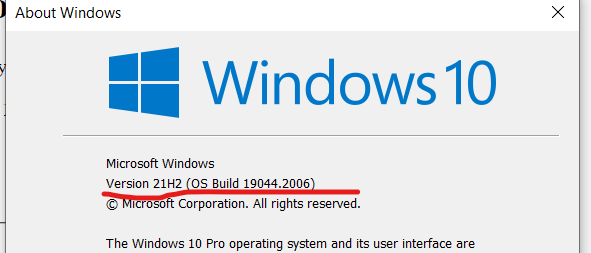
  • The OS should be either Windows 10 64-bit Home or Pro 21H1 (build 19043) or higher. The version can be checked from PowerShell
    • winver
  • 64-bit processor
  • 4GB system RAM
  • BIOS-level hardware virtualization support must be enabled in the BIOS settings
  • The WSL2 (Windows Subsystem for Linux) feature must be enabled.
  • Open PowerShell in Administrator mode and run
    • wsl --install
  • You’ll be prompted for confirmation to install. Click yes to proceed.
  • Once done the following installation screen will be shown:
  • You need to reboot the system to effect the changes.
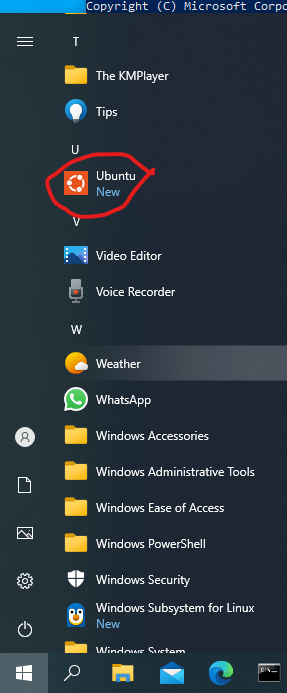
  • After reboot you can find Ubuntu (this is the default distribution) at you program menu.
  • Select Ubuntu to finish installation.
  • You will be prompted for setting your UNIX user & password (which is not necessarily your windows credential but can be anything you prefer)
  • The default UNIX/ Ubuntu user will be the username you set here.
  • If you select Ubuntu from program menu once again you will get the Ubuntu terminal
  • If you forget this default user password you can login using root and reset the passowrd.
  • To change the default user to root run windows command prompt as Administrator
    • ubuntu config --default-user root
  • Run Ubuntu from program menu once again and you’ll find the default user is set to root.
  • To change password
    • passwd username
  • Type the new password and reconfirm
  • Once done you can change the default user again
  • From PowerShell you can check the default distribution installed and can list down other distribution (if any) as well
    • wsl --list

Installing Docker:

Docker for Windows can be downloaded from: https://docs.docker.com/desktop/install/windows-install/

  • Run the installer and Select “Use WSL2 instead of Hyper-V” option. However, if your Windows does not support Hyper-V (like you have Windows 10 Home Edition) you won’t get this option.
  • You need to logout from Windows to finish the installation
  • Once done you’ll find Docker Desktop is running
  • From PowerShell or Ubuntu you run
    • docker
  • Docker container on Windows can run on both as Linux Container and Windows Container
  • Select Docker Desktop from task bar and you can switch between Linux and Windows Container
  • As currently we have configured Docker for Linux Container (which is by default) so switching to Windows Container option are shown here

However switching from the taskbar won’t necessarily switch the container to Windows Container. Few more tasks are needed to be done as stated at the following section.

Enabling Windows Container:

  • Windows Container can be installed only if you have Windows 10 Pro edition
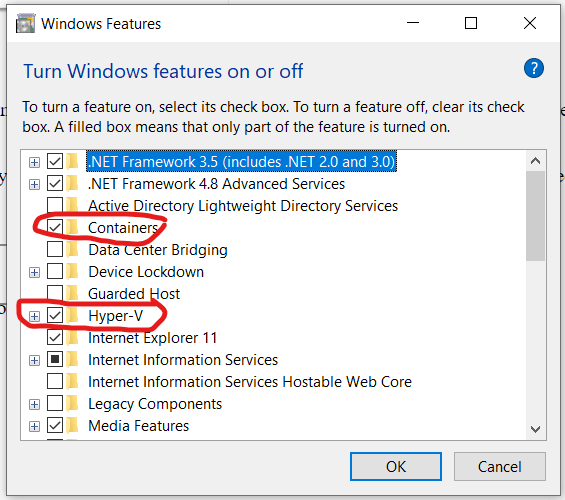
  • From start menu type “Turn Windows Feature on or off” and select Container & Hyper-V option
  • Once installation is done you’ll need to restart the PC

References:

Microservice Architecture

Microservice Architecture is one of the new buzzes in the software architecture arena. There are a lot of questions, confusions and contradictions about this pattern. Here I am trying to summarize the entire concept which might seems a bit over simplification. But yet it can be a very good starting point of understanding the basic concepts.

The Traditional Architecture (The Monolith)

Let us start with the way we’ve been developing our software. Considering a simple e-commerce store front application where it is able to take orders from customers, verifies inventory, available credit and ships item.

We might assume the following:

  • It has both mobile and web interface
  • It has the API to expose the services to some third party applications
  • It has the ability to handle http requests and therefore deployed in a web server like IIS or Apache
  • It has the ability to executing business logic
  • It has access to relational database like MS SQL or Oracle
  • And many more

Therefore, the application might have the following architecture:

  • A Store Front UI (Mobile/ Web/ Desktop)
  • Accounting Service
  • Inventory Service
  • Shipping Service
  • Business Layer
  • Data Access Layer
  • And whatever you think feasible

Fig: A Traditional Monolithic Architecture

This application would be a simple monolithic one which can be deployed at IIS or Apache web server or whatsoever you prefer for. A hardware or software load balancer can be incorporated to scaling up and improve availability as well.

Now consider the advantages that we have with this architecture:

  • Simple and quick development cycle
  • Easy to deploy
  • Easy to scale

However, once the application becoming to grow, more and more modules are adding on it will be:

  • Difficult to maintain the large code base
  • Take more time to introduce new developers
  • Bulky IDE
  • Difficult to patching update
  • Continuous deployment require rigorous testing
  • Stuck to the technology

The Microservice

Now let us think it on a different way. Instead of having everything all together (like the way we’ve described above) it might be designed in other approach where:

  • It is designed as a set of loosely coupled, collaborating services
  • Each of the services consist of its own business logic and database
  • The services can run independently or/ and interdependently with other third party services

Fig: Microservice Architecture

The benefits this architecture will provide:

  • Easier for a developer to get in
  • More responsive IDE
  • Easier to deploy new version of any service
  • Easier to scaling development between different teams
  • Eliminate the technology stuck
  • Improved fault isolation

Anyway, nothing comes without disadvantages and the drawbacks are:

  • Developers have to deal with the additional complexity of distributed system
  • Deployment is still an issue due to the complex nature of managing different service types
  • Requires more effort on integration testing

Characteristics of Microservice

So far we’ve a basic understandings of both the architectures. Let us try to define Microservice. From James Lewis and martin Fowler:

“In short, the Microservice architectural style is an approach to developing a single application as a suite of small services, each running in its own process and communicating with lightweight mechanisms, often an HTTP resource API. These services are built around business capabilities and independently deployable by fully automated deployment machinery. There is a bare minimum of centralized management of these services, which may be written in different programming languages and use different data storage technologies.”

Well enough? Hard to get the definition? Let us put things in a simpler way. Instead of having a formal definition let us try to define the characteristics of Microservice:

  • Componentization via Services – The service must be independently upgradeable and replaceable.
  • Organized around Business Capabilities – The team must be sufficiently capable of delivering the end user business needs themselves, no segregation of team considering like UI developer, DBA and so on.
  • Products not Projects – A team developing the product will own the product for its full lifetime, no project ownership but product.
  • Smart endpoints and dumb pipes – No enterprise service bus (ESB), the endpoint should be intelligent to handle end to end requirements.
  • Decentralized Governance – Managing of services along with the underlying technology are not standardized centrally. Each service development team have their own choices to go with the exact need for that service.
  • Decentralized Data Management – No central database for all the services. Each service talks to their own database.
  • Infrastructure Automation – Unlike monolith automation of infrastructure is an utmost requirement for continuous delivery and integration.
  • Design for failure – Need to be designed so that any service failure can respond to other as graceful as possible.
  • Evolutionary Design – Enable application developer to control changes in their services without slowing down handling change requirement.

Monolith vs Microservice

Now let us try to differentiate both the architecture in the easiest form. The big advantage of Monolith is, it is simple and relatively easy to use. We are used to with this architecture for so long and it is proven to work for. However, when the question of continuous deployment comes in, Microservice is easy to deploy. If we want to upgrade a monolith we’ve to upgrade the entire thing. Whereas, Microservice can do the upgrade only for the components that is require to upgrade. This becomes crucial when continuous upgradation is a part of development, upgrades are happening not once in a month but almost every week and even every day.

Another great advantage of Microservice is availability. If one of our services goes down, still we can run the other services. However, the tradeoff here is the consistency. It is always harder to maintain consistency for Microservice compare to Monolith. There is a lot of components communicating each other through network layers and one mess can mess the whole.

In monolith it is easier to refactor between modules. But yes we’ve to understand the module boundary perfectly to do so. But still if we’ve some issue we can easily do the refactor. But for Microservice doing inter module refactoring means a lot. It’s not only copying the class and objects from here to there but it means to change at the different service layer. However, it turns to the point that Microservice ensures to preserve modularity because we are bound to do so. It is kind of a discipline that forces us to keep the modularity.

Last but not least, Microservice helps to go for multiple platform. We can have one module written on C# and the other in Java or whatsoever is suitable for. Which is almost not easily practicable in Monolith.

Microservice and SOA

The major question on this arena is that are Microservice just SOA? Before answering this let us try to revisit what SOA means? From Don Box:

“There are four tenets of service-orientation

  • Boundaries are explicit
  • Services are autonomous
  • Services share schema and contract, not class
  • Service compatibility is based on policy”

For Microservice the first two tenets are satisfied with the real emphasis on the second. In fact, we can consider Service Oriented Architecture (SOA) is something like our enterprise service bus which is a very broad terminology and Microservice is just a subset of SOA.

Wrapping Up

So, that’s all! A bit over simplification of Microservice Architecture but I think it can be a very good starting point. If we compare with Monolith it is all about the tradeoff we want to make. We just cannot come in a conclusion that the Monolith era is over, rather we should say that Microservice comes with the answer of few burning questions of Monolith. However, you should go for Microservice if you really need it. It is not a fancy type of thing that you explore at your production without proper planning.

Resources

Happy Micro servicing  🙂

Always Encrypted on SQL 2016

History of database encryption is quite old. If we look behind to SQL 2000 era back in the beginning of this century there were no native tools to do so. But several third party tools were always available to encrypt the data at rest. Even another popular choice was to encrypt the entire data disk. Later on, SQL 2005 introduces call level encryption. But a big change came on SQL 2008 which brings the concept of Transparent Data Encryption (TDE). But once again like the third party encryption tool TDE can’t encrypt data in motion. Therefore, data in memory or in the communication channel are still in the risk. Moreover, TDE requires the entire database to be encrypted which increases the size of the database.

Why Database Encryption

  • Separation of role between who own data and who manage data
  • Protecting sensitive data e.g. Credit Card Number, National ID
  • Running database and/or application in the cloud
  • Prevent high-privileged users from having access to sensitive data
  • Delegation of DBA role
  • Regulatory Compliance and Audits

Always Encrypted on SQL 2016

SQL 2016 comes into play with a solution of all the above “Always Encrypted” meaning data is encrypted and will be remain that wherever it resides except from the user who own data. Always encryption provides:

  • A transparent end to end solution for sensitive columns
  • All encryption and decryption is handled transparently by the driver library on the client
  • Allows clients to encrypt sensitive data inside client applications and never reveal the encryption keys to SQL Server
  • Data is never in plain text while being stored or accessed while on SQL Server (including while in memory)

How it works

The underlying working principal for always encrypted is quite straight forward. It requires the following to start up:

  • A Column Encryption Key (CEK) to encrypt the selected columns.
  • A Column Master Key (CMK) is required to encrypt the CEK.
  • Selection of the encryption algorithm.
  • Selection of the column to be encrypted.
  • A certificate store (either windows or Azure) to store the certificate.
  • Installing the certificates where the client application runs.

Let’s get into detail of these in the following sections.

Always Encrypted Keys

Always Encrypted uses two types of keys: column master keys and column encryption keys

Column Master Keys (CMK):

  • To encrypt column encryption keys
  • Encrypted values of the keys along with their location are stored on system catalog view
  • SQL Server does not contain the keys needed to decrypt data
  • Must be stored in a trusted key store
  • Column Master Keys must be deployed on each client machine that needs access to the unencrypted data

Column Encryption Keys (CEK):

  • To encrypt sensitive data stored in database column
  • A single key can encrypt all values in a column/ table
  • Encrypted values of the keys are stored on system catalog view
  • Store this key in a secured/ trusted location for backup
  • Each CEK can have 2 encrypted values from 2 CMKs to allow master key rotation

Type of Encryption

There are two types of encryption deterministic and randomized.

Deterministic encryption:

  • Generate same encrypted value for a given text
  • Allows grouping, filtering and joining
  • Should be used on column used for primary key, indices or unique constraints
  • Better chance of data decryption by unauthorized user by examining the pattern especially when applied to a smaller set of data

Randomized encryption:

  • Encrypting data in a less predictable manner
  • More secure because different set of data is generated for same plain text
  • Prevents equality searches, grouping, indexing and joining

Creating your first Always Encrypted Object

In this step by step example we’ll be creating a very basic HR database with an Employee table consisting of only four column ID, Name, Sex and Salary. We’ll encrypt the salary column using deterministic encryption because salary can be compared for different range of value. As the Sex column will have a very small data set (Male or Female) it is better to use randomized encryption for this data otherwise data can be easily presumed.

Here are the steps:

  • Create HR DB
  • Create Table employee(
    EID INT NOT NULL PRIMARY KEY,
    EName VARCHAR(10) NOT NULL,
    Sex VARCHAR(6) NOT NULL,
    Salary NUMERIC(10,2) NOT NULL)
  • Let’s insert few data:
    INSERT INTO Employee
    VALUES (1,'David','Male',10000)
    INSERT INTO Employee
    VALUES (2,'Lily','Female',20000) 
  • Right click on Employee table and select Encrypt Columns…
    4
  • The Encryption wizard will appear. Click Next on it
    5
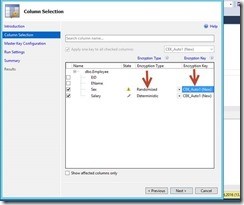
  • Select the column you want to encrypt. Here Sex and Salary columns are selected for encryption. Sex column will be encrypted using randomized algorithm and Salary column will be encrypted using deterministic algorithm. An auto generated new Column Encryption Key will be created (CEK_Auto1)
    6
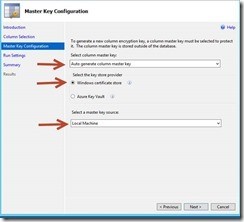
  • Click next to create the Column Master Key. Select the auto generated option and save it to Windows Certificate Store in Local Machine.
    7
  • Proceed next to continue
    8
  • The wizard will execute the scripts.
  • Finally press close when it is done.
  • That’s all now we have things ready.
  • Running a select statement will show encrypted value for the rows inserted earlier.
  • The CEK and CMK can be found under Always Encrypted Keys Option of HR DB
    13
  • The CMK certificate can be found at Windows Certificate Store of local machine. Run certmgr.msc and select Certificates under Intermediate Certification Authorities. The Always Encryption Auto Certificate1 can be found there.
    14
  • You need to install this certificate to the client machine from where your application runs. You can export this certificate by right clicking on the certificate name and select export. The certificate can be imported by just double clicking on any client machine.

Please ensure that the encryption wizard runs on some other machine than the DB server. Because the DBA will have complete access to the DB server and if the key is available on the DB server the DBA can easily have a look to the decrypted value.

Well, so far we are done with creation of the KEY and certificates. Now we want to have a look our original data. If you have the certificate installed on a machine and there you have a SQL Management Studio you can easily view the data by adding additional connection parameter.

15

Enable the client application to read and write the Encrypted Object

As we’ve already seen that adding the additional connection parameter allowing us to view the encrypted data where the certificate is installed, similarly for client application we just need to add the same string to the connection properties.

If you are running a MVC web application on a Windows 2012 R2 server. You need to install the certificates on this server before you change the web.config.

Controlling the performance of Data Layer

Controlling the performance of data access layer is a major fact to consider while encrypting your data. Here are some rule of thumb.

When most of the queries access encrypted column:

  • Enable the encryption at connection string
  • SqlCommandColumnEncryptionSetting.Disabled for query that do not access encrypted column
  • SqlCommandColumnEncryptionSetting.ResultSet that do not have any parameter requiring encryption but retrieve encrypted column

When most of the queries do not need to access encrypted column:

  • Disable the encryption at connection string
  • SqlCommandColumnEncryptionSetting.Enabled for query that have encrypted parameters
  • SqlCommandColumnEncryptionSetting.ResultSet that do not have any parameter requiring encryption but retrieve encrypted column

Limitation

There are some data types as well as column type which are not supported to be a candidate for always encryption:

  •  XML
  • timestamp/ rowversion
  • image
  • ntext/ text
  • sql_variant
  • hierarchyid
  • geography/ geometry
  • User defined type
  • Non Binary2 Collation string data type
  • Alias
  • Sparse column set
  • Partitioning columns
  • Columns with default constraints/ check constraints
  • Referencing column can’t be encrypted with randomized option (for deterministic option the CEK must be the same)
  • Columns that are keys of full text indices
  • Columns referenced by computed columns when the expression does unsupported operations
  • Columns referenced by statistics
  • Table variable columns

Clause that can’t be used:

  • FOR XML
  • FOR JSON PATH

Features that are not supported:

  • Transactional or Merge Replication
  • Distributed Queries (linked servers)

Resources

There are other things like key rotation, migrating from legacy system especially for Entity Framework and many more. Here are some useful links which can be a good candidate for starting up.

Always Encrypted (Database Engine):

https://msdn.microsoft.com/en-us/library/mt163865.aspx

https://channel9.msdn.com/events/datadriven/sqlserver2016/alwaysencrypted

Always Encrypted (Client Development):

https://msdn.microsoft.com/en-us/library/mt147923.aspx

https://blogs.msdn.microsoft.com/sqlsecurity/2015/08/27/using-always-encrypted-with-entity-framework-6

Column Master Key Rotation and Cleanup with Always Encrypted:

https://msdn.microsoft.com/en-us/library/mt607048.aspx

Import/Export Windows Cert:

http://windows.microsoft.com/en-us/windows/import-export-certificates-private-keys#1TC=windows-7

Happy Encrypting :)