Backing up database is an activity that is one of the most regular task to do with. But many times those backup are not verified by restoring. Usually database restore happens for the following:
- Drill restoration
- Data error
- Disaster scenario (which is restore and then recover)
Assume a scenario, where there is a fire on your office and you have fire fighting equipment but no one knows how to use that or even worse the equipment is not working during a fire! That’s why fire drills are there. Similarly there should be data restoration drill at a regular interval to avoid panic at disaster scenario.
Defining Backup Strategy:
To define a backup strategy we need to first set the goal with correct backup type:
- Recovery Point Objective (RPO): How much data can you afford to loose.
- Recovery Time Objective (RTO): How long the downtime can you afford. For very large enterprise database (VLDB) this would be a big challenge.
When we are talking about restore usually it means restore with recover. If we can’t afford much data loss we must need to recover until the last point or at least to the best possible recover point.
In this article we’ll discuss the two most common backup types with restoration scenario. In the later article (https://sultanealam.com/2024/06/19/sql-server-backup-strategy-part-2/) we’ll discuss backup strategy for large database.
The two most common backup types are:
- Full backup
- Differential backup
A full backup is a backup that have the complete database backup and that suffices to bring the database up with a single restore. Whereas, a differential backup is the delta changes since the last full backup.
There are two more backup types followed by the above to restore the database to the most recent transactions:
- Transaction Log Backup – A transaction log is database log file where all the transactions are being written until a full or differential backup is taken. This should be taken at a regular interval until the next full or differential backup.
- Tail Log backup – A tail log backup captures any record that have not yet been backed up. This must be taken before any restoration operation is done. It is usually needed on a database fail or crush scenario.
However, the database recovery model must be set to Full to avail this backup. Without full recovery model you can’t recover beyond the full/ differential backup.

A typical backup plan may be:
- Full backup on the last week day
- Differential backup on each other week day
- Transaction log backup during the day on each 15 minutes
If this can be done, then at worst case we can loose 15 minutes of data if we can’t take a tail log backup. The detail of tail log will be described later.
Simulation of Backup & Restore:
To simulate we will do the following:
- Create a database with some records
- Taking a full backup followed by two differential backup with new data at each backup
- Take a transaction log backup after inserting more data
- Take a tail log backup
- Restoring each sequentially
To start with, let’s create a test database with a single table. Ensure that C:\DemoBkup\ folder exists at your machine.
-- Create New Database
USE MASTER
GO
CREATE DATABASE [DemoBkup]
ON  PRIMARY
	( NAME = N'DemoBkup', FILENAME = N'C:\DemoBkup\DemoBkup.mdf' , SIZE = 8192KB , MAXSIZE = UNLIMITED, FILEGROWTH = 65536KB )
LOG ON
	( NAME = N'DemoBkup_log', FILENAME = N'C:\DemoBkup\DemoBkup_log.ldf' , SIZE = 8192KB , MAXSIZE = 2048GB , FILEGROWTH = 65536KB )
WITH CATALOG_COLLATION = DATABASE_DEFAULT
GO

-- Creating Table
USE DemoBkup
GO

CREATE TABLE Customer
(
	CustomerId		INT			NOT NULL,
	CustomerName	VARCHAR(50) NOT NULL,
	CustomerEmail	VARCHAR(50) NOT NULL,
	CONSTRAINT PK_Customer PRIMARY KEY CLUSTERED ([CustomerId] ASC) ON [PRIMARY],
	CONSTRAINT UQ_Email UNIQUE ([CustomerEmail]) ON [PRIMARY],
) ON [PRIMARY]
GO

-- Inserting Data
USE DemoBkup
GO
INSERT INTO Customer (CustomerId,CustomerName,CustomerEmail) VALUES (1,'Sultan Khan','sultan@sultan.com')
GO
INSERT INTO Customer (CustomerId,CustomerName,CustomerEmail) VALUES (2,'Ahsan Kabir','ahsan@ahsan.com')
GO
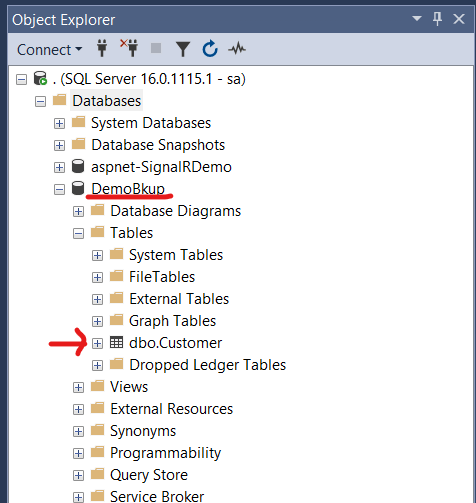
The newly created database can be viewed at SQL Server Management Studio (SSMS).
Now let’s take a full backup.
-- Full Bkup
USE MASTER
GO
BACKUP DATABASE [DemoBkup]
	TO DISK = 'C:\BkupPlan\DemoBkUp\DemoBkup.BAK'
	WITH NAME = 'DemoBkup-Full',
	DESCRIPTION = 'DemoBkup-Full'
GO
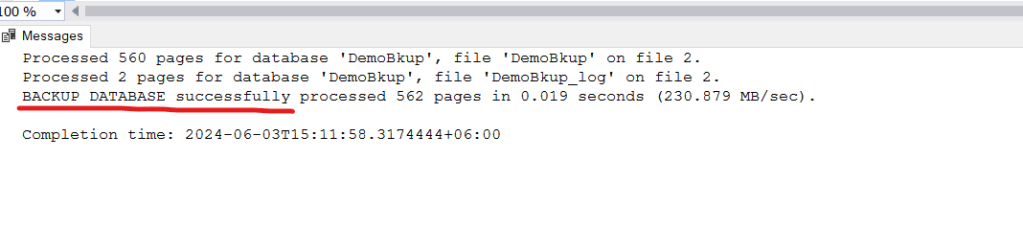
On success, the following message will displayed at output pane
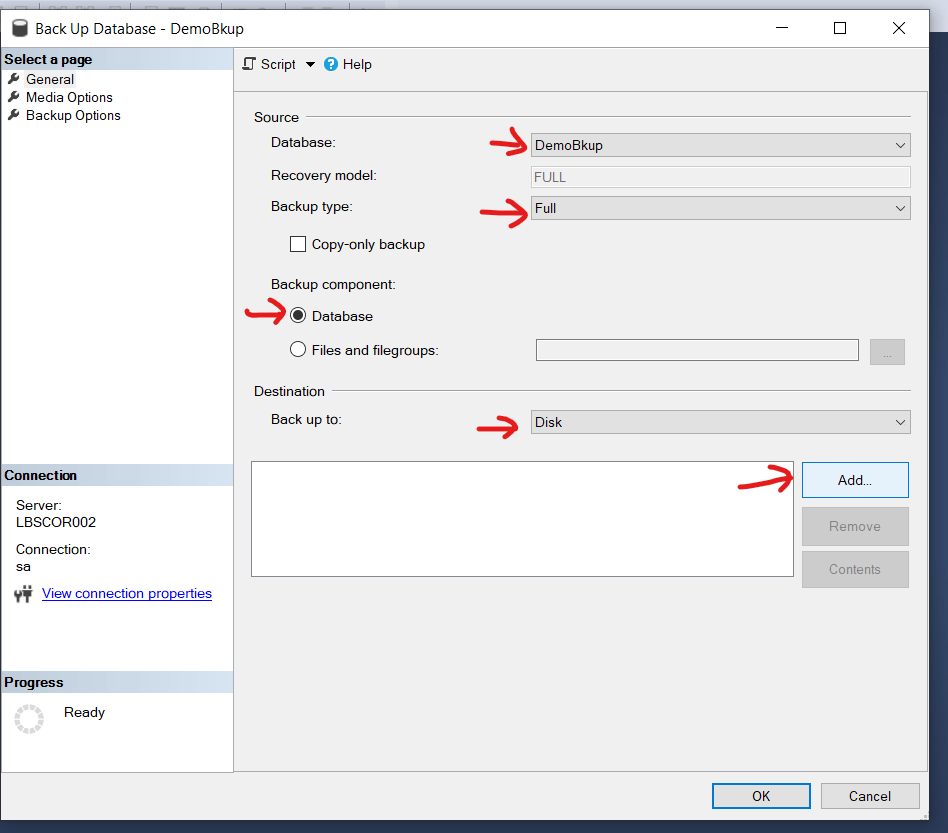
Alternatively, backup can be taken from the SSMS. Right click on the database select Task an then select “Back Up…”

Click on Add to enter the destination path
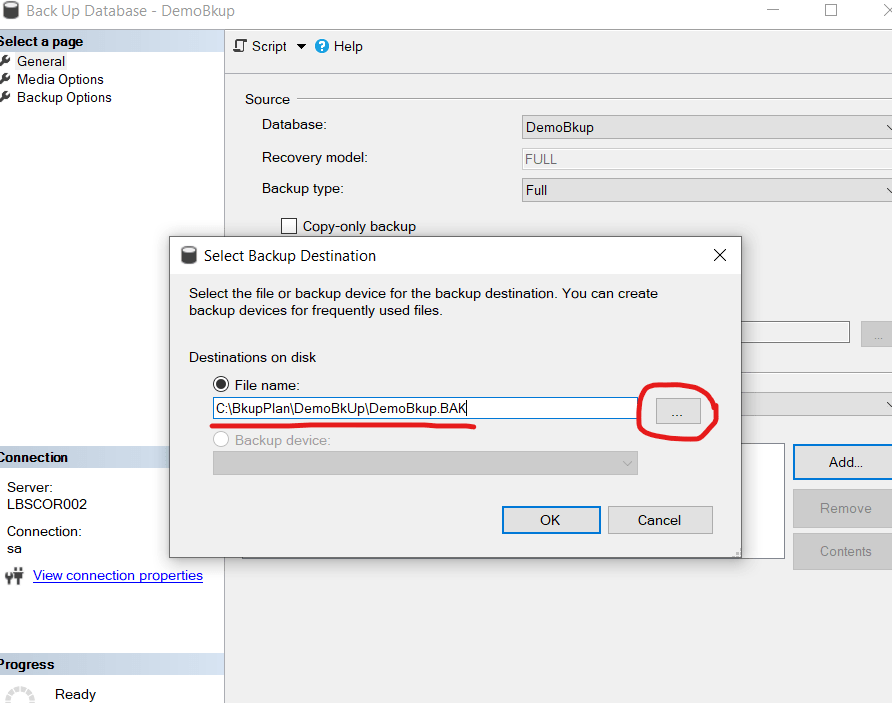
Type the path name or click on the dot to select from the file system location.
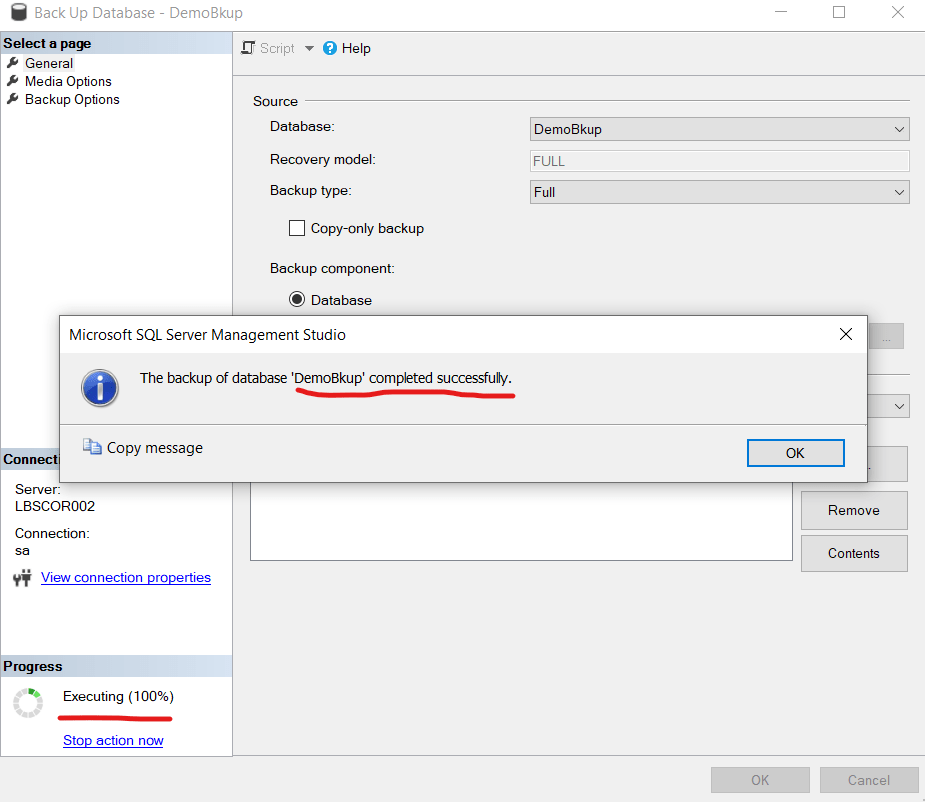
You will receive confirmation on successful backup.
So far, we’ve taken a full backup either using the query editor or using the SSMS. Now let’s insert two more rows and then take a differential backup after each insert.
-- Inserting One More Row
INSERT INTO Customer (CustomerId,CustomerName,CustomerEmail) VALUES (3,'Mehedi Hasan','mehedi@mehedi.com')
GO

-- Differential Bkup 1
USE MASTER
GO
BACKUP DATABASE [DemoBkup]
	TO DISK = 'C:\BkupPlan\DemoBkUp\DemoBkup_Diff_1.BAK'
	WITH DIFFERENTIAL,
	NAME = 'DemoBkup-Diff-1',
	DESCRIPTION = 'DemoBkup-Diff-1'
GO

-- Inserting Another Row
USE DemoBkup
GO
INSERT INTO Customer (CustomerId,CustomerName,CustomerEmail) VALUES (4,'Rifat Jahan','rifat@rifat.com')
GO

-- Differential Bkup 2
USE MASTER
GO
BACKUP DATABASE [DemoBkup]
TO DISK = 'C:\BkupPlan\DemoBkUp\DemoBkup_Diff_2.BAK'
WITH DIFFERENTIAL,
NAME = 'DemoBkup-Diff-2',
DESCRIPTION = 'DemoBkup-Diff-2'
GO
Up to this point we’ve one full backup and two differential backup. Note that both the differential backup are the changes from the full backup. So, to restore we need to restore the full backup and the last differential backup.
However, before performing restore let’s assume after the differential backup few other rows also inserted but before taking the next full/ differential backup the database failed. So, to restore and recover up to the last possible point we need the transaction log backup. Let’s insert another row and take a transaction log backup.
-- Inserting another row
INSERT INTO Customer (CustomerId,CustomerName,CustomerEmail) VALUES (5,'Saifullah Azad','azad@azad.com')
GO

-- Transaction Log Bkup (the recovery model must be FULL)
USE MASTER
GO
BACKUP LOG [DemoBkup]
	TO DISK = 'C:\BkupPlan\DemoBkUp\DemoBkup_Log.BAK'
	WITH NAME = 'DemoBkup-Tran',
	DESCRIPTION = 'DemoBkup-Tran'
GO
Both differential & transaction log backup can be taken using SSMS as well.

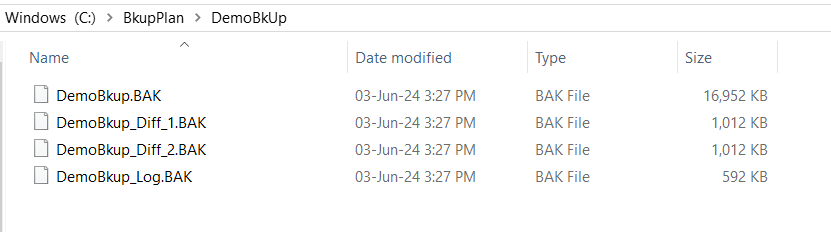
Now, we’ve one full backup, two differential backup and one transaction log backup. Therefore, we can recover up to this point on any DB crash. Note that, so far we’ve inserted 5 records with customer id 1 to 5.
Now, let’s insert another row for which we won’t take any backup at all.
-- Inserting Further
INSERT INTO Customer (CustomerId,CustomerName,CustomerEmail) VALUES (6,'Shahadat Hemel','hemel@hemel.com')
GO
Let’s try to restore this data after a forced database failure. So, let’s crash the database. At first take the database offline.
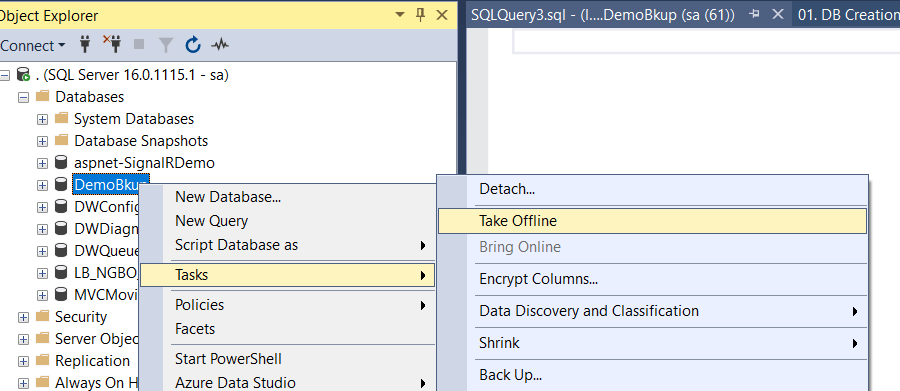
Then go to the database file location at windows file explorer C:\DemoBkup and delete the DemoBkup.mdf file which is the master data file. Please do not practice this at production. Now, if we try to bring the database online it’ll fail.
Let’s try to recover the data now.
-- Restore the last full backup
USE MASTER
GO
RESTORE DATABASE [DemoBkup]
	FROM DISK = 'C:\BkupPlan\DemoBkUp\DemoBkup.BAK' WITH NORECOVERY, REPLACE
GO

-- Restore the last differential backup
RESTORE DATABASE [DemoBkup]
	FROM DISK = 'C:\BkupPlan\DemoBkUp\DemoBkup_Diff_2.BAK' WITH NORECOVERY
GO

-- Restore the log backup
RESTORE DATABASE [DemoBkup]
	FROM DISK = 'C:\BkupPlan\DemoBkUp\DemoBkup_Log.BAK' WITH RECOVERY
Look, for the full and differential restore we keep the database state to NORECOVERY. At the final restore we do the RECOVERY. The restoration can be done using the SSMS also. Select Restore Database option right clicking on the database name.
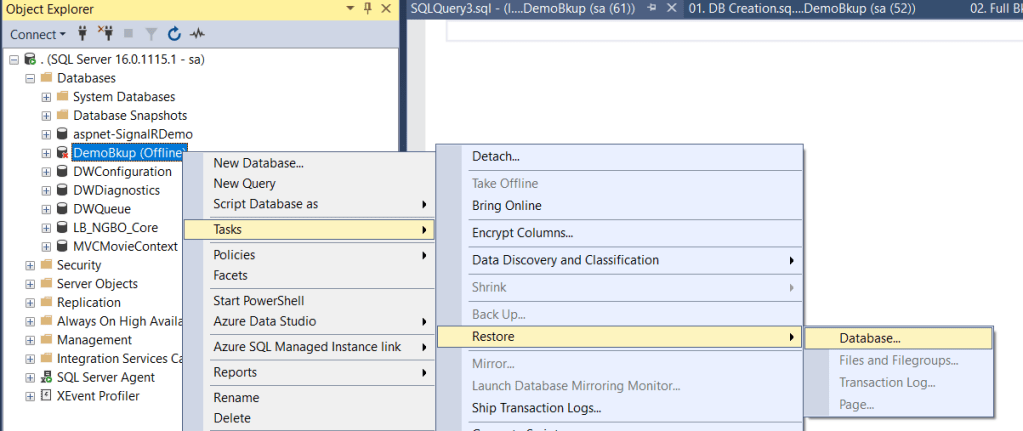
Select Device as source and click the three dot.

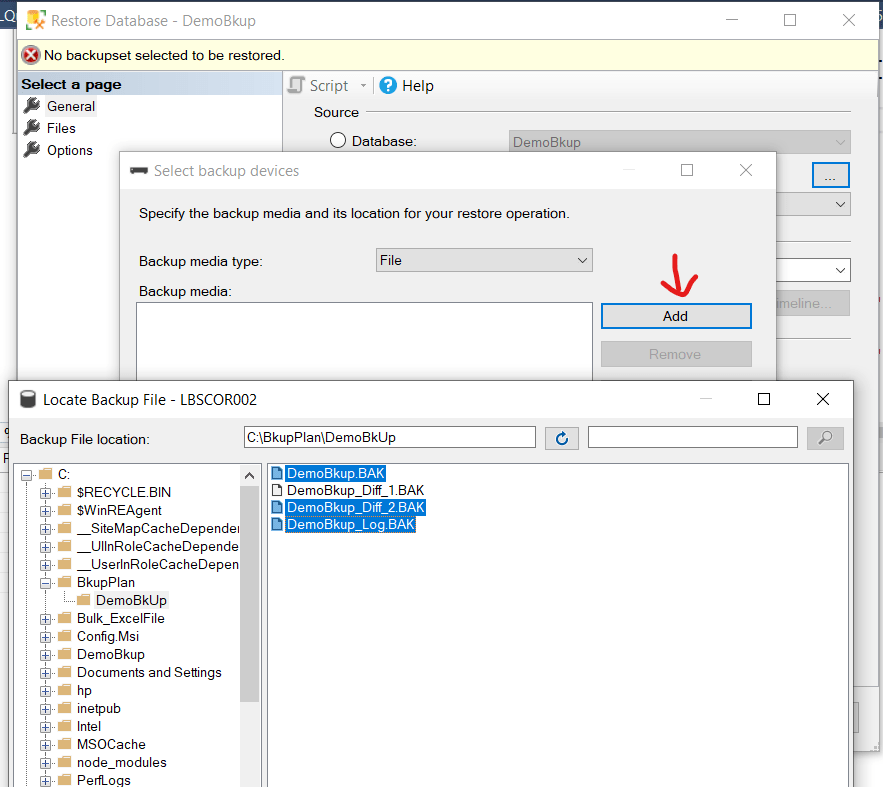
Then Click Add and select the three backup set: the full backup, last differential backup and transaction log backup.
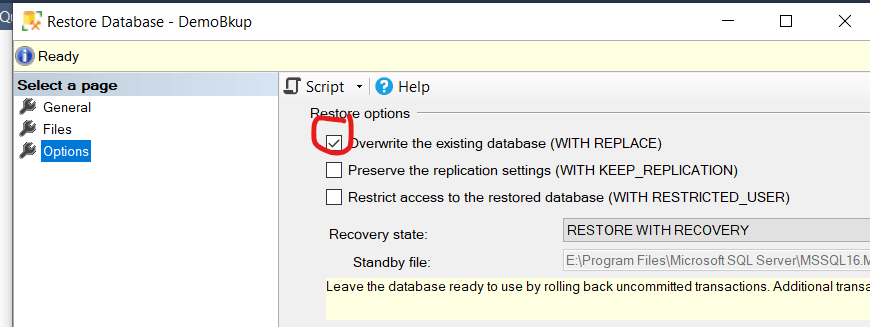
From option Select Overwrite the existing database.
Press Ok to continue. Once done (at either way you follow), we will find first 5 customers data that we’ve inserted.

But where is the employee with ID=6? Well, we’ve no transaction log backup for that. So should that data lost? If by any means we can access the database log file then we can take a tail log backup before any restore operation is done.
USE MASTER
GO
BACKUP LOG [DemoBkup]
	TO DISK = 'C:\BkupPlan\DemoBkUp\DemoBkup_Tail_Log.BAK'
	WITH NORECOVERY,CONTINUE_AFTER_ERROR,
	NAME = 'DemoBkup-Tail',
	DESCRIPTION = 'DemoBkup-Tail'
GO
Note that at earlier stage, since we suggested to take the database offline and delete the .mdf file (not recommended to do at production), please try to bring the database online first before taking the tail backup. It’ll not bring the DB to online but it’ll make the log available for tail backup.
Now, with the successful tail backup the restore of transaction log should be with NORECOVERY because we’ll recover after tail restoration. These two backup script will be:
-- Restore Transaction Log
USE MASTER
GO
RESTORE DATABASE [DemoBkup]
	FROM DISK = 'C:\BkupPlan\DemoBkUp\DemoBkup_Log.BAK' WITH NORECOVERY
GO

-- Restore Tail Log
USE MASTER
GO
RESTORE DATABASE [DemoBkup]
	FROM DISK = 'C:\BkupPlan\DemoBkUp\DemoBkup_Tail_Log.BAK' WITH RECOVERY
GO
Now, we can find the employee with ID=6 also. So we are able to recover up to the last point.

The same restoration can be done from SSMS. Just select the tail backup while selecting the backup set.
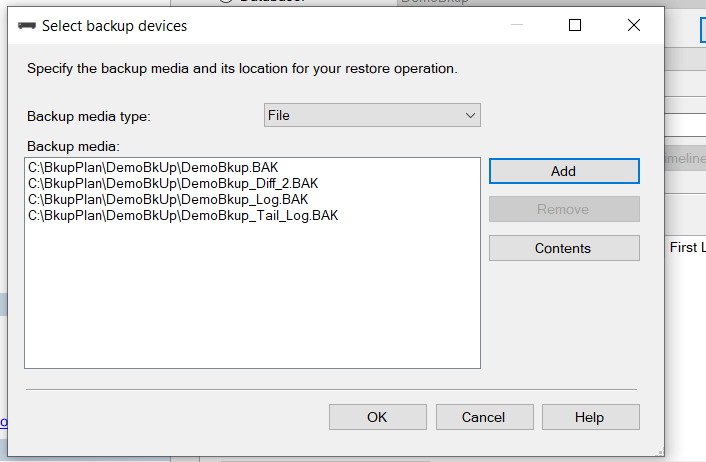
So, we are now done with a complete recovery from a DB failure. The backup and recovery always need to be well planned and tested at a regular interval to avoid DB fail on a disaster scenario. The backup plan should be a well written document with a recovery guideline.
Happy Restoring !!!
 Sultan's Blog