To have a basic introduction with RabbitMQ and message queueing please refer to my article https://sultanealam.com/2024/03/11/configuring-rabbitmq-on-ubuntu/ which discussed installing RabbitMQ on Ubuntu. However, this article will use RabbitMQ from a Docker Image.
Introduction to Message Broker:
Before diving into the implementation let’s consider few use cases where message queueing can be a good choice. A publisher/producer can be any software program e.g. an online banking application that can publish message whenever a transaction happen so that the subscriber (another application) of that message can use that information to communicate somewhere else. This publisher-subscriber communication is usually asynchronous and they work independently. Therefore, for any reason if the subscriber/consumer is down, it won’t affect the producer to push message to the queue. Later on, whenever the consumer is up it can process the message asynchronously. This publisher-subscriber or producer-consumer architecture is the core of the message broking service and this makes this methodology so popular for microservice based architecture.
Another popular example is an e-commerce application where placing order is basically publishing an order detail to the message queue and there can be several consumer that is using this message to process. As for example, the shipping consumer can use the published data for prepare shipping, the email consumer can use it for sending email to client, the inventory consumer can update the inventory and so on.
Implementation:
To write our demo application, we will develop a single producer and single consumer where the producer will publish the message to a docker hosted message queue locally. The subscriber will consume the message from the queue.
To start with, let us deploy a RabbitMQ docker image:
docker run -it --rm --name rabbitmq -p 5672:5672 -p 15672:15672 rabbitmq:3.13-management
TO configure docker on Windows kindly refer to my article https://sultanealam.com/2023/02/22/configuring-docker-on-windows-10/
It’ll run a RabbitMQ server at localhost port 5672 with default user & password (guest & guest respectively). You can browse the RabbitMQ management at: http://localhost:15672 and login using this default credential.
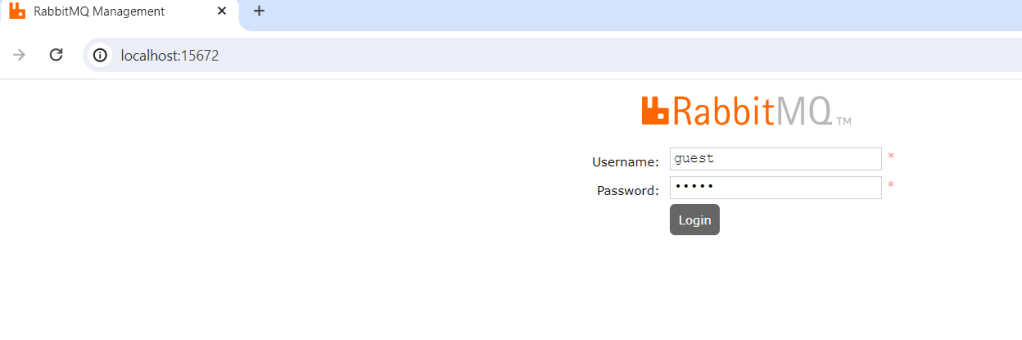
If you want to run a full installation of RabbitMQ kindly refer to my article https://sultanealam.com
Developing the publisher:
- Create a .Net Core Console Application
- Implement IHostedService to run the console as background task
- Activate Scoped Service to use Dependency Injection
- Create RabbitMQ Producer Interface & it’s implementation
- Publish Deposit Message to the RabbitMQ for consuming
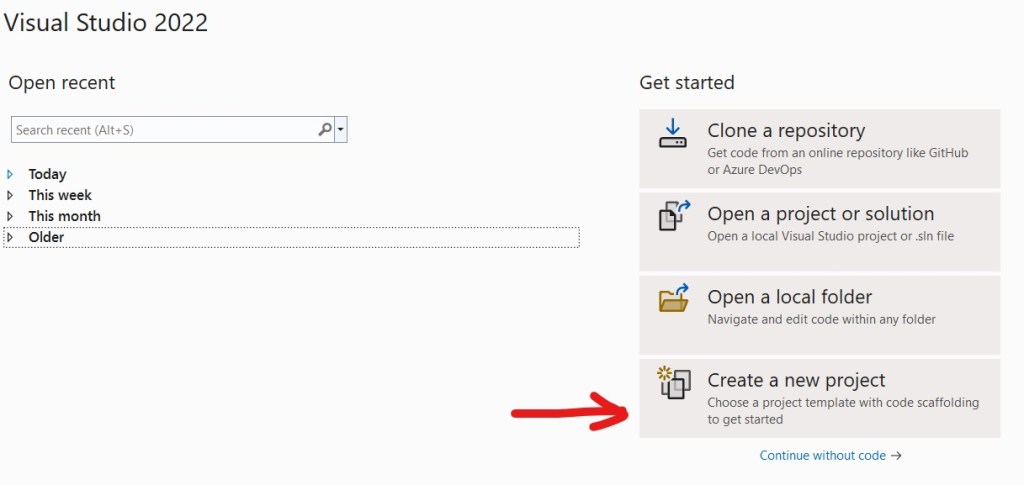
Open Visual Studio 2022 and select new project:
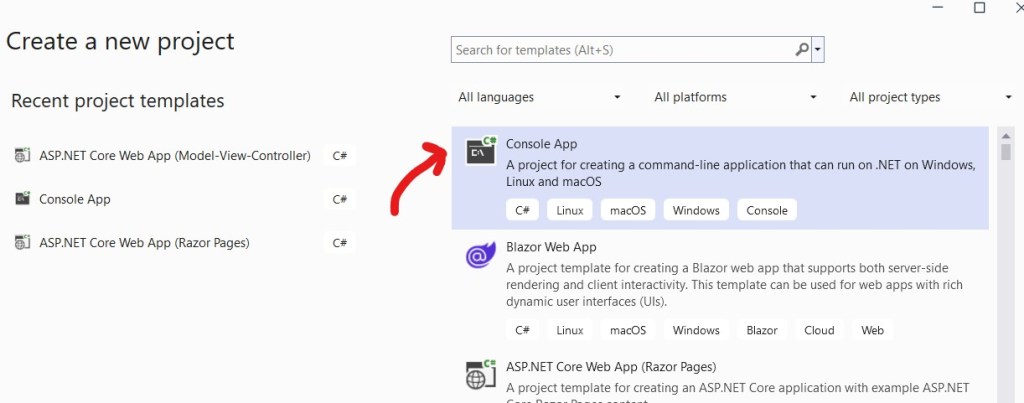
Select Console Application:
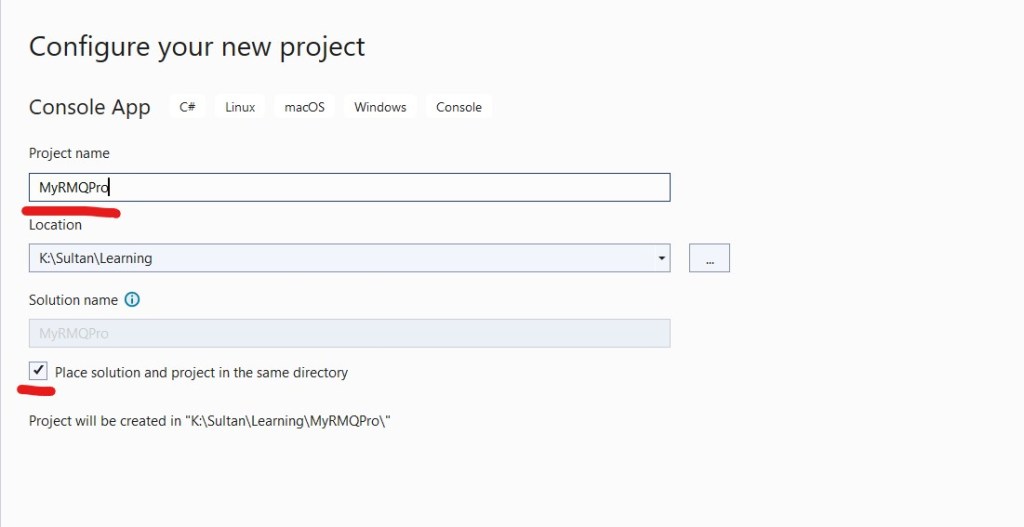
Enter Project Name for Publisher/ Producer MyRMQPro and click next:
Select the latest framework:
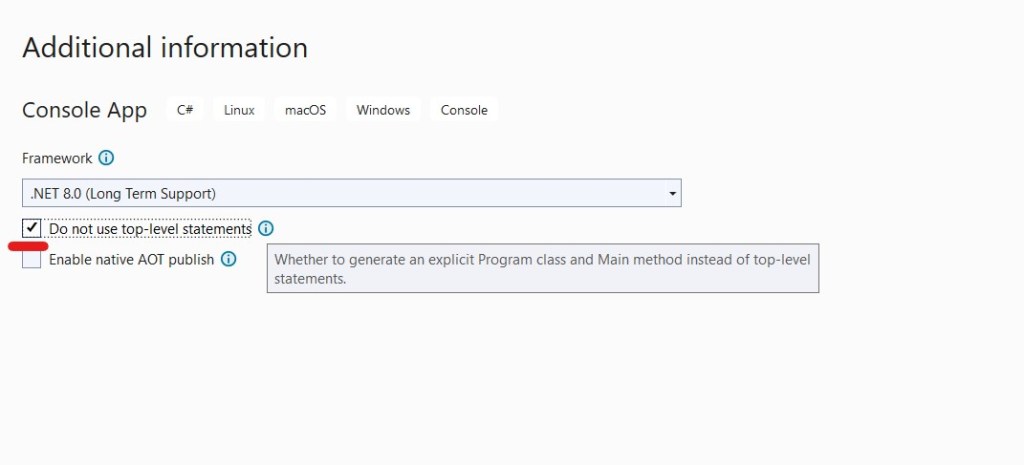
We’ve selected “Do not use top-level statements” because personally we prefer to have explicit Program class for better readability.
Now let’s install the necessary packages:
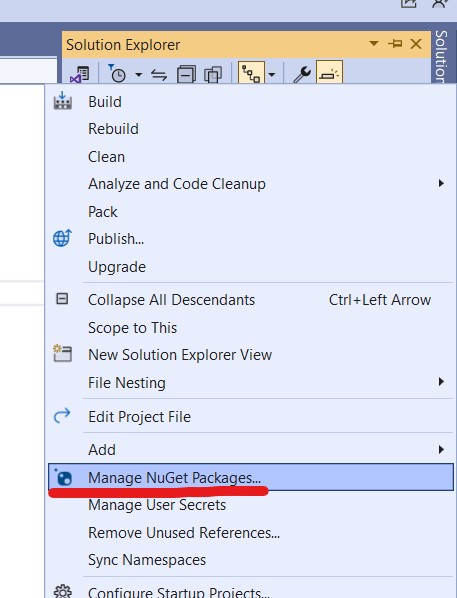
From settings check that nugget.org should set as the package source:

Go to Manage Nugget Packages again and search for RabbitMQ.Client

Install the latest stable version.
Similarly we also need to install the following nugget packages
- Newtonsoft.Json
- Microsoft.Extensions.Hosting
- Microsoft.Extensions.DependencyInjection
Now let us create the RabbitMQ Producer Interface and it’s implementation.
namespace MyRMQPro
{
    public interface IRabbitMQProducer
    {
        public void SendMessage<T>(T message);
    }
}
We’ll implement this interface along with IDisposable
internal class RabbitMQProducer : IDisposable, IRabbitMQProducer
{
        public RabbitMQProducer(IConfiguration config)
        {
            HostName = config["RMQ:HostName"];
            Port = config.GetValue<int>("RMQ:Port");
            UserName = config["RMQ:UserName"];
            Password = config["RMQ:Password"];
            Exchange = config["RMQ:Exchange"];
            Type = config["RMQ:Type"];
            Queue = config["RMQ:Queue"];
        }

}
The constructor will receive all the connection parameter usually from the setting file like the following:
{
  "RMQ": {
    "HostName": "localhost",
    "Port": "5672",
    "UserName": "guest",
    "Password": "guest",
    "Exchange": "MyRMQEx",
    "Type": "direct",
    "Queue": "MyRMQQu"
  }
}
We will explain the detail shortly. Before that, let us come to the SendMessage method which will create the connection to exchange and queue and process message for sending.
public void SendMessage<T>(T message)
{
So, at the very beginning we are establishing the connection with the RabbitMQ server. It requires the HostName, Port, UserName & Password. For our docker image the host is localhost, the default port is 5672, default user & password both are guest. Once the connection is creating we are creating the channel.
    //Rabbit MQ Server
    var factory = new ConnectionFactory
    {
        HostName = HostName,
        Port = Port,
        UserName = UserName,
        Password = Password
    };
    //Create the RabbitMQ connection
    _connection = factory.CreateConnection();
    //Creating channel with session and model
    _channel = _connection.CreateModel();
The next part is declaring the Exchange. To do so, we need to tell the Exchange name which is “MyRMQEx” from the setting file. Then we are telling the exchange type which is “direct” from the setting. The Direct Exchange is simple, the message goes to the Queue which binding key exactly matches the routing key of the message. In this case, we are simply keeping the routing key to empty, so any consumer subscribing to this Queue having empty routing key can consume the message published from here. Apart from Direct Exchange there are other exchanges like topic, headers and fanout. Though we are receiving the Exchange Type from settings, there is a class ExchangeType which can be used to set the type like ExchangeType.Direct. We are declaring the exchange durable and it won’t be deleted even after there are no producer.
     //Declaring Exchange
    _channel.ExchangeDeclare(Exchange, Type, durable: true, autoDelete: false);
Now, we will declare the Queue and bind it to the exchange. The Queue name is taken from the setting which is “MyRMQQu”.
    //Declaring the queue
    _channel.QueueDeclare(Queue, durable: true, exclusive: false, autoDelete: false);
    _channel.QueueBind(Queue, Exchange, string.Empty);
Like the exchange we are declaring the Queue as durable with autoDelete to false. We are also setting exclusive to false so the Queue will be available outside it’s declaring connection.
The final step is to serialize the message and publish.
            //Serialize the message
            var json = JsonConvert.SerializeObject(message);
            var body = Encoding.UTF8.GetBytes(json);
            //put the data on to the product queue
            _channel.BasicPublish(exchange: Exchange, routingKey: String.Empty, body: body);
            Console.WriteLine($"Message published: {json}");
That’s all with the publishing the message. We need to implement the IDisposable to close the open connection and channel.
 protected virtual void Dispose(bool disposing)
 {
     if (!disposedValue)
     {
         if (disposing)
         {
             _channel.Close();
             _connection.Close();
         }
         disposedValue = true;
     }
 }
 public void Dispose()
 {
     // Do not change this code. Put cleanup code in 'Dispose(bool  disposing)' method
     Dispose(true);
     GC.SuppressFinalize(this);
 }
Now, let’s implement the IHosted Service for background job which will produce random message and pushed to the exchange.
public Task StartAsync(CancellationToken cancellationToken)
{
    for (int i = 1; i <= 15; i++)
    {
        Deposit deposit = new Deposit(i, i*1000,DateTime.Now);
        _rabbitMQProducer.SendMessage(deposit);
    }
    return Task.CompletedTask;
}
public Task StopAsync(CancellationToken cancellationToken)
{
    return Task.CompletedTask;
}
We’ve initiated a POCO class Deposit to simulate the message:
public class Deposit
{
    public int TransactionId { get; set; }
    public decimal TransactionAmount { get; set; }
    public DateTime TransactionDate { get; set; }

    public Deposit(int transactionId, decimal transcationAmount, DateTime transactionDate)
    {
        TransactionId = transactionId;
        TransactionAmount = transcationAmount;
        TransactionDate = transactionDate;
    }
}
The main program will create the HostBuilder to activate scoped service and create the instance:
 static void Main(string[] args)
 {
     Host.CreateDefaultBuilder()
         .ConfigureServices((context, services) =>
         {
             var config = context.Configuration;
             // Host
             services.AddHostedService<ProducerHost>();
             // RabbitMQ
             services.AddSingleton<IRabbitMQProducer,RabbitMQProducer>(i => new RabbitMQProducer(config));
         })
         .Build()
         .Run();
 }
Now if we run the producer we can find the deposit message are printed to the screen and we can find them at our RabbitMQ admin dashboard.
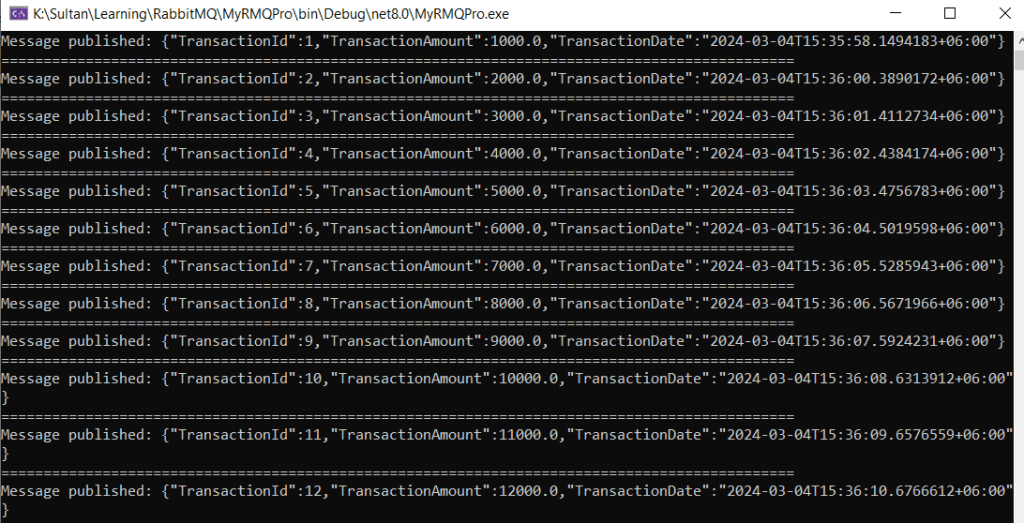

The Exchange can also be found here with the Queue binding:
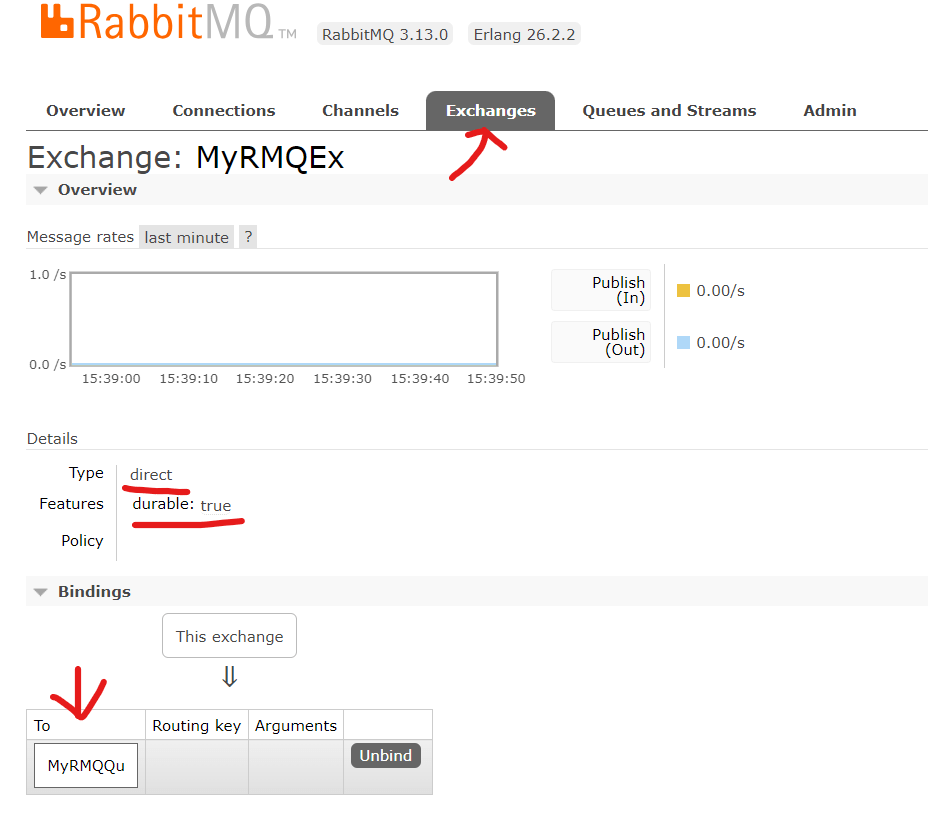
Developing the consumer:
Now we’ll create a consumer to process all those published messages. The to do things are almost same lie the producer:
- Create a .Net Core Console Application
- Implement IHostedService to run the console as background task
- Activate Scoped Service to use Dependency Injection
- Create RabbitMQ Consumer Interface & it’s implementation
- Consume Deposit Message from the RabbitMQ that have already published
Follow the same step that we did above for publisher to create a .net console application and install the nugget packages. Then create the RabbitMQ consumer and it’s implementation:
namespace MyRMQCon.RMQ
{
    public interface IRabbitMQConsumer
    {
        public void ReceiveMessage(Func<string, bool> callback);
    }
}
Like the producer we’ll implement this interface along with IDisposable:
public class RabbitMQConsumer : IDisposable, IRabbitMQConsumer
{
    public RabbitMQConsumer(IConfiguration config)
    {
        HostName = config["RMQ:HostName"];
        Port = config.GetValue<int>("RMQ:Port");
        UserName = config["RMQ:UserName"];
        Password = config["RMQ:Password"];
        Exchange = config["RMQ:Exchange"];
        Type = config["RMQ:Type"];
        Queue = config["RMQ:Queue"];
        FetchSize = config.GetValue<ushort>(config["RMQ:FetchSize"]);
    }
The only difference from the producer is the FetchSize which we’ll describe soon. The setting file will look like the producer except the addition of the FetchSize:
{
  "RMQ": {
    "HostName": "localhost",
    "Port": "5672",
    "UserName": "guest",
    "Password": "guest",
    "Exchange": "MyRMQEx",
    "Type": "direct",
    "Queue": "MyRMQQu",
    "FetchSize": 10
  }
}
The ReceiveMessage will receive a Func delegate returning boolean. The callback function will be implemented at the Hosted Service. We’ve the same program flow up to the Queue binding like the Producer:
        public void ReceiveMessage(Func<string, bool> callback)
        {
            //Rabbit MQ Server
            var factory = new ConnectionFactory
            {
                HostName = HostName,
                Port = Port,
                UserName = UserName,
                Password = Password
            };
            //Create the RabbitMQ connection
            _connection = factory.CreateConnection();
            //Creating channel with session and model
            _channel = _connection.CreateModel();
            //Declaring Exchange
            _channel.ExchangeDeclare(Exchange, Type, durable: true, autoDelete: false);
            //Declaring the queue
            _channel.QueueDeclare(Queue, durable: true, exclusive: false, autoDelete: false);
            //Binding Queue to Exchange
            _channel.QueueBind(Queue, Exchange, string.Empty);
Now we need to tell the fetch size. Fetch size is the number of message a consumer fetch in case there are multiple consumer running to distribute the load.
//The first Param prefetchSize must be 0 which is the only implementation RabbitMQ.Client currently have
_channel.BasicQos(0, FetchSize, false);
Now, we’ll create the event handler which will be fired whenever there are any message at the Queue and it’ll subsequently invoke the function.
//Setting event object which listen message from chanel which is sent by producer
var consumer = new EventingBasicConsumer(_channel);
consumer.Received += (sender, eventArgs) =>
{
    var body = eventArgs.Body.ToArray();
    var message = Encoding.UTF8.GetString(body);
    Console.WriteLine($"Message received: {message} at {DateTime.Now}");
    bool success = callback.Invoke(message);
    if (success)
    {
        //Will acknowledge on success only :: auto acknowledgement must be false on channel
        _channel.BasicAck(eventArgs.DeliveryTag, false);
        Console.WriteLine($"Message Acknowledged.");
    }
    else
    {
        //Rejecting and requeuing (requeue starts processing after reaching the fetch count for current fetch)
        _channel.BasicReject(eventArgs.DeliveryTag, true);
    }
};
We are acknowledging the message after the successful invocation of the callback function. It will ensure that the message won’t leave the queue until the processing is successful. In addition, message that failed to process during invoking are requeuing. Requeued message are automatically reprocessed by consumer until it succeed.
Finally we need to call BasicConsume outside the event handler with setting auto acknowledge to false.
//We are not auto acknowledging (autoAck), rather on successful consume we'll do that on each Invoke
_channel.BasicConsume(queue: Queue, autoAck: false, consumer: consumer);
The next part is to implement the IDisposable which is exactly the same thing we did for the producer. So, I am not repeating the code.
Now, let’s implement the IHosted service for the consumer.
public Task StartAsync(CancellationToken cancellationToken)
{
    _rabbitMQConsumer.ReceiveMessage(ProcessMessage);
    return Task.CompletedTask;
}
public Task StopAsync(CancellationToken cancellationToken)
{
    return Task.CompletedTask;
}
The ReceiveMessage will Invoke the ProcessMessage to process the job
 public bool ProcessMessage(string message)
 {
     Deposit deposit = JsonConvert.DeserializeObject<Deposit>(message);
     if (deposit != null)
         return true;
     return false;
 }
The Deposit POCO class is already discussed at the Producer section above. On successful processing it’ll return true so the message will be acknowledged and leave the queue.
Like the Producer Main Program, the Consumer Main Program will also create the HostBuilder to activate scoped service and create the instance:
static void Main(string[] args)
{
    Host.CreateDefaultBuilder()
        .ConfigureServices((context, services) =>
        {
            var config = context.Configuration;
            // Host
            services.AddHostedService<ConsumerHost>();
            // RabbitMQ
            services.AddSingleton<IRabbitMQConsumer, RabbitMQConsumer>(i => new RabbitMQConsumer(config));
        })
        .Build()
        .Run();
}
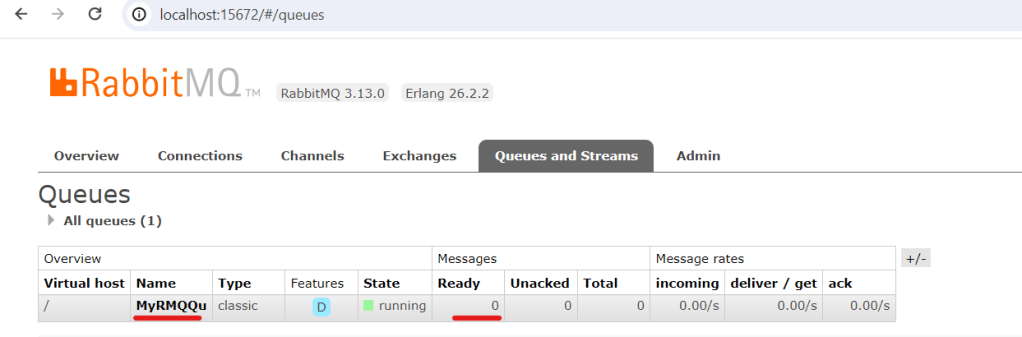
Now if we run the consumer we’ll find all Queued message by our producer are now consumed and printed to the console. The RabbitMQ Admin dashboard queue is cleared.

Get the complete code from Git.
- Producer: https://github.com/sultan-alam/MyRMQPro
- Consumer: https://github.com/sultan-alam/MyRMQCon
Happy Messaging !!!






 Sultan's Blog